
Operating System
Windows users face constant cyber threats, but these 10 proven tactics will transform your security posture—from basic protections to advanced strategies tailored specifically for Microsoft’s ecosystem.
Enable Windows Security Built-In Firewall
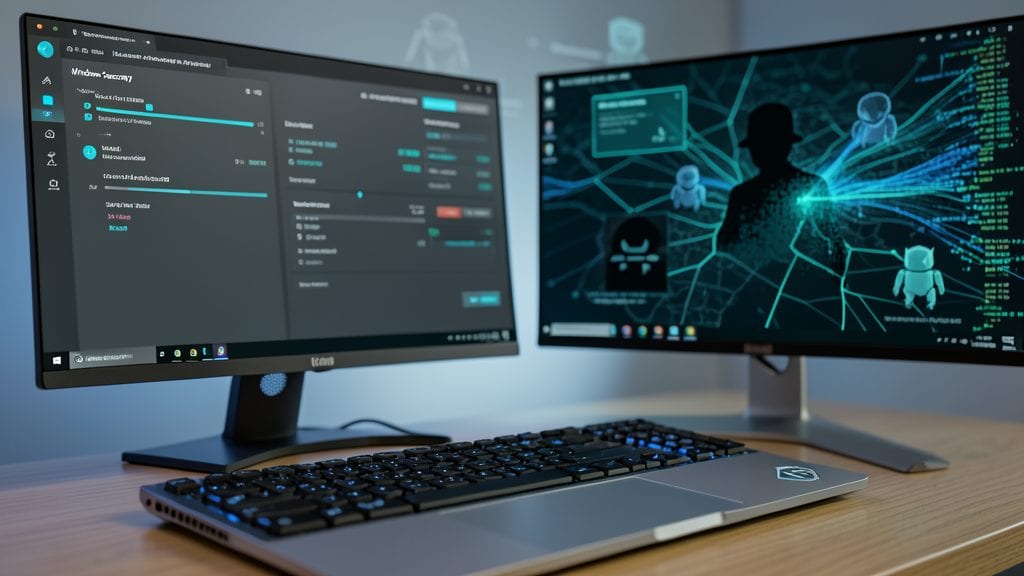
Your Windows PC is under siege every second—malware, hackers, and automated bots scanning for vulnerabilities. The Windows Security Firewall, built into every version of Windows, silently blocks 90% of unauthorized network traffic before it even reaches your applications.
With real-time monitoring and customizable rules, it filters incoming and outgoing connections, stopping everything from brute-force attacks to data exfiltration attempts. The best part? It’s free, always-on, and requires zero configuration—just toggle it to "On" in the Windows Security app. For remote workers or small businesses, enabling domain isolation (via Advanced Settings) adds an extra layer of protection against lateral movement attacks.
This is the one security feature every Windows user should enable—whether you're browsing at home or connecting to a corporate network. It’s your first line of defense against the digital wild west. ⚡
Use Multi-Factor Authentication Everywhere
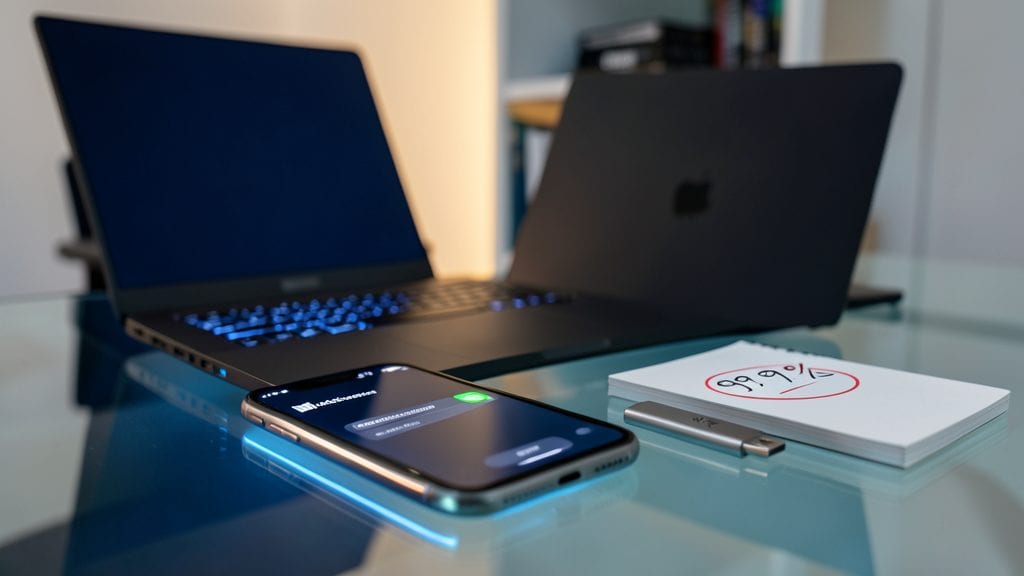
Your password might be strong, but hackers don’t stop there—99.9% of account takeovers happen when they bypass weak second layers. That’s why Multi-Factor Authentication (MFA) is your secret weapon, especially for Microsoft accounts, email, and banking.
Microsoft’s Authenticator app generates time-based codes that expire every 30 seconds, while FIDO2 security keys (like YubiKey) offer phishing-resistant hardware-based authentication. Even SMS-based MFA is better than nothing—though app-based codes are far more secure. Enabling MFA for just your Microsoft account cuts breach risks dramatically.
This is a must for anyone managing sensitive data—whether you’re a freelancer protecting client files or a parent securing a kid’s school account. Start with the most critical accounts first. ✨
Regularly Update Windows and Drivers
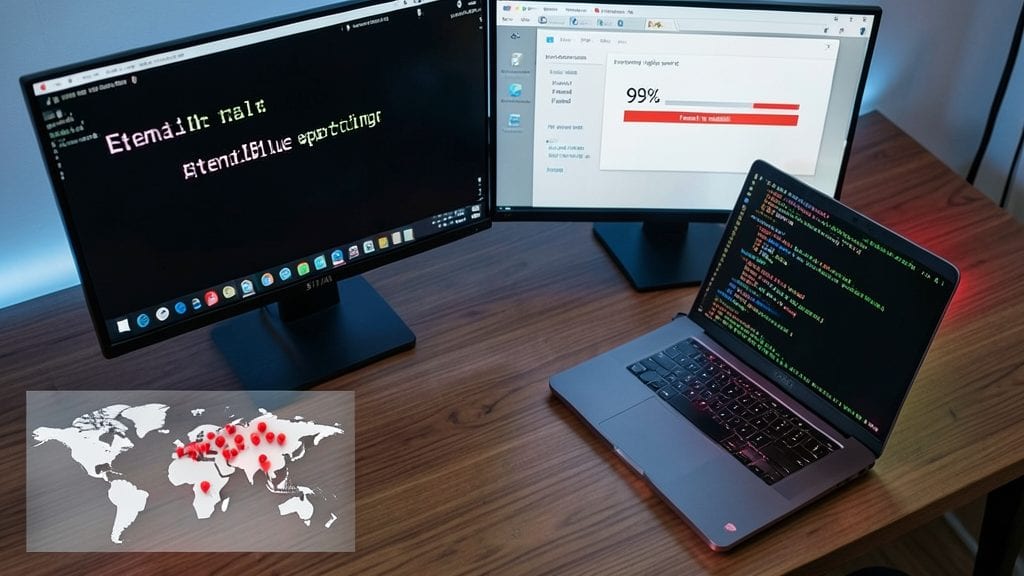
Skipping updates leaves your system vulnerable to exploits that could turn your PC into a botnet or give hackers full control. The EternalBlue vulnerability alone infected over 200,000 machines in the 2017 WannaCry attack—all because users ignored patches.
Windows updates now include monthly security patches for zero-days, while driver updates from manufacturers like NVIDIA or Intel often fix critical flaws in hardware communication protocols. Set Windows to automatic updates and use tools like Snappy Driver Installer to keep drivers current without manual searches.
This is non-negotiable for anyone running Windows—whether you're a gamer, developer, or casual user. A single missed update can turn your system into a hacker's playground. ⚡
Install a Reputable Antivirus Solution
While Windows Defender handles everyday threats, ransomware and phishing attacks demand heavier artillery. Tools like Bitdefender Total Security or Norton 360 Deluxe go beyond basic scans with AI-powered behavior analysis and real-time web protection—blocking malicious sites before you click.
These premium suites also include multi-layer ransomware shields, VPN protection, and identity theft monitoring—features missing from Defender. Bitdefender’s 2023 tests showed a 99.9% detection rate for zero-day malware, while Norton’s Dark Web Monitoring alerts you if your credentials appear in breaches. Both offer one-year free trials to test before committing.
Perfect for small business owners or anyone handling sensitive data—like freelancers with client files or parents managing kids’ devices. Upgrade your defense without sacrificing performance. 💻
Disable Unused Microsoft Services
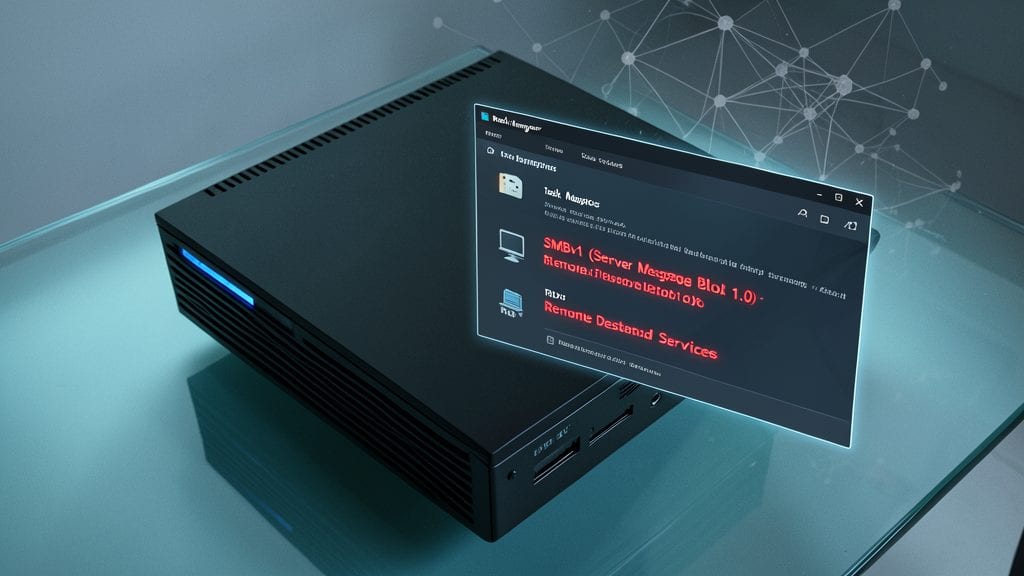
Your Windows PC runs dozens of background services you never use—like SMBv1 (a 20-year-old file-sharing protocol riddled with vulnerabilities) or Remote Desktop Services (which hackers scan for exposed ports). Disabling these hidden services slashes your attack surface without sacrificing core functionality.
Use Task Manager (Ctrl+Shift+Esc → Services tab) to disable Remote Registry, SSDP Discovery, and Fax Service—Microsoft’s own documentation flags these as unnecessary for most users. For deeper control, try NirSoft’s Service Manager to batch-disable services with a single click. Even power users can safely turn off Windows Error Reporting (unless you’re debugging) or Print Spooler (unless you print daily).
This tweak is ideal for gamers (reduces background resource drain), developers (cleaner system logs), and privacy-conscious users who want fewer attack vectors. Just remember to re-enable Remote Desktop if you need it—then secure it with a strong password and network-level authentication. 💪
Secure Your Microsoft Account with Strong Passwords
Your Microsoft account is the digital key to your email, OneDrive, and Xbox—yet most users still recycle passwords across services, leaving them vulnerable to credential stuffing attacks.
Tools like Bitwarden (free and open-source) or KeePass (offline, zero-config) automatically generate 24-character passwords with symbols, numbers, and uppercase letters—no memorization required. They also sync across devices, so your Windows 11 PC, phone, and tablet all stay protected without password fatigue. A single breach won’t compromise all your accounts.
This is especially critical for Xbox Live, Office 365, and Microsoft Store accounts—cybercriminals target these heavily. Even if you’ve enabled MFA, strong passwords remain the first line of defense against brute-force attacks. 💻
Enable BitLocker for Full-Disk Encryption

What if someone stole your laptop today? Without BitLocker, your sensitive files—tax records, work projects, or even personal photos—could be exposed in minutes. This built-in Windows tool encrypts your entire drive, making data unreadable without your recovery key, even if the device falls into the wrong hands.
Available on Windows Pro and Enterprise editions, BitLocker uses AES-256 encryption by default and integrates with Microsoft Active Directory for enterprise management. Setup takes just a few clicks: save your recovery key to Microsoft’s cloud or a USB drive, and encryption happens automatically in the background—no tech degree required. It even supports TPM (Trusted Platform Module) chips for hardware-based protection.
This is a must for business professionals, remote workers, or anyone handling confidential data. Even casual users benefit from the peace of mind—because if your device gets lost or stolen, your data stays safe. ✨
Monitor Suspicious Activity with Windows Event Viewer
Windows Event Viewer isn’t just a dusty admin tool—it’s your real-time cybersecurity radar for spotting breaches before they escalate. Hidden in plain sight, this built-in utility logs every login attempt, process launch, and system error, making it the ultimate early-warning system for advanced users.
Look for Event ID 4625 (failed logins) or 4688 (new process creation) in the Security Logs—these often signal brute-force attacks or malware execution. Filter by time ranges to spot unusual activity, like late-night logins from unfamiliar locations. The Windows Event Forwarding feature even lets you centralize logs across multiple machines for enterprise-level monitoring.
This is your go-to for IT admins, developers, and power users who need granular visibility into system behavior. Set up automated alerts for critical events, and you’ll catch threats most users never see. 💻
Use a Standard User Account Daily
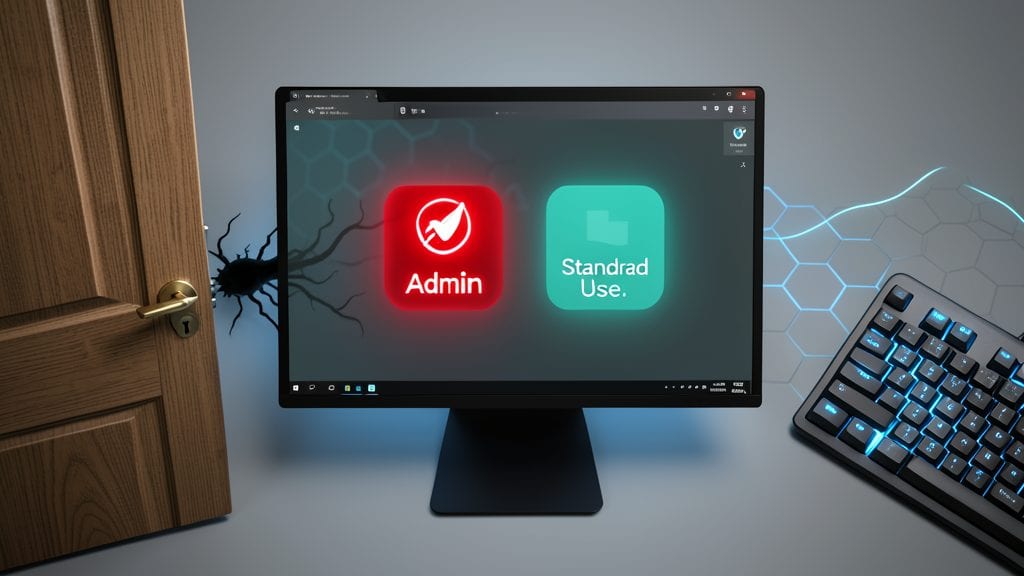
Most Windows users log in as administrators by default—but that’s like leaving your front door unlocked 24/7. A standard user account limits malware damage to just your profile, preventing system-wide corruption from malicious downloads or phishing scams.
Switching is simple: use Ctrl+Shift+Alt+Left Arrow to toggle accounts, and only elevate privileges via UAC prompts when installing software or updating drivers. Microsoft even recommends this for Windows Pro/Enterprise deployments, citing reduced attack surfaces in enterprise security guides.
This is especially critical for casual users who browse the web or download apps—malware like Emotet or ransomware can’t encrypt your whole drive if it’s restricted to a standard account. ⚡
Backup Critical Files with Windows File History
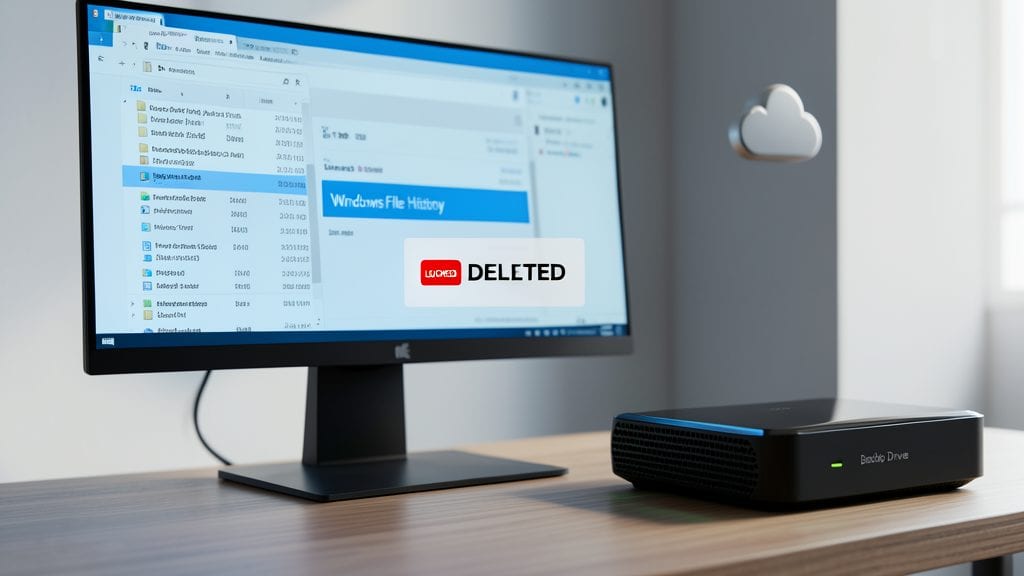
Ransomware attacks don’t just lock your files—they delete them. Windows File History acts as your silent guardian, automatically backing up critical files to an external drive or OneDrive without lifting a finger. Unlike manual backups, it runs in the background, capturing changes every 10 minutes by default, so you never lose more than a few edits.
Setting it up takes minutes: plug in a USB drive or link your Microsoft OneDrive account, and Windows handles the rest. Need to restore? Simply browse versions of files through the File Explorer right-click menu—no tech degree required. The best part? It’s built into Windows 10/11, so there’s zero cost or complex configurations to worry about.
This is your last line of defense if malware strikes—small businesses, freelancers, and families all benefit from the peace of mind it provides. Just don’t forget to test your backups occasionally! ✨