PowerPoint
PowerPoint transitions can transform a basic presentation into a professional, engaging slideshow. These seven transition effects help you control pacing, emphasize key points, and keep your audience visually engaged without distracting from your content.
Fade Transition for Professional Elegance
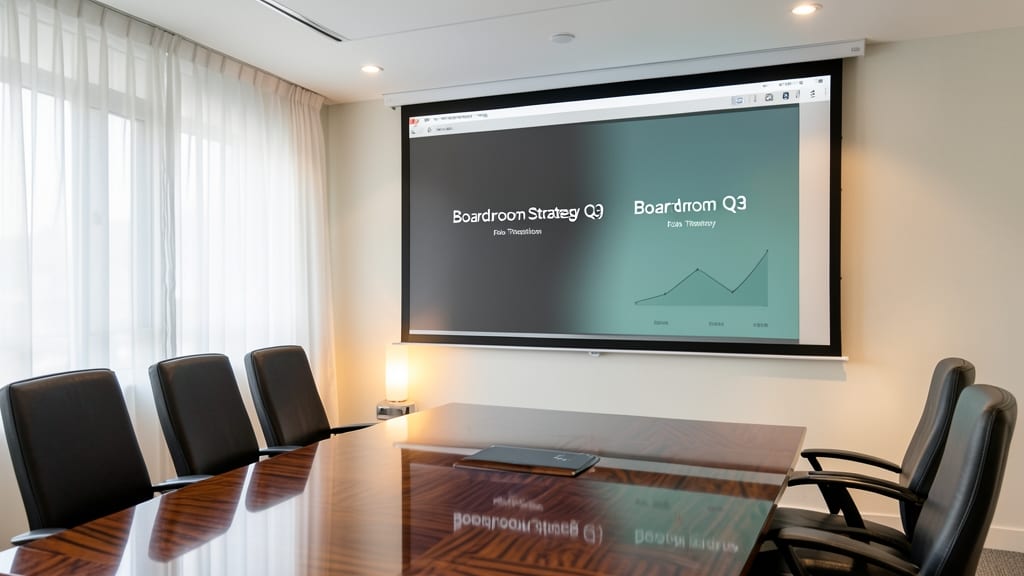
Looking to elevate your presentation without overpowering your message? The Fade Transition in PowerPoint delivers a sleek, distraction-free shift between slides, perfect for boardrooms and client meetings where subtlety speaks louder than flash. Unlike flashy animations, this effect dissolves one slide into the next with a soft, seamless motion—no abrupt cuts or visual clutter.
To apply it, select your slide, navigate to the Transitions tab, and choose Fade. Customize the speed (slow for elegance, fast for pacing) and add a sound effect (like a subtle chime) to reinforce professionalism. The black-to-white or white-to-black variants work best for high-contrast slides, ensuring clarity while maintaining polish.
This transition is the go-to for executives, lawyers, and academics—anyone presenting complex ideas where the focus must remain on the content. Use it consistently for a cohesive, high-end feel that builds credibility. ⚡
Slide Zoom for Dynamic Emphasis

Want to make your audience lean in when you hit that critical slide? The Slide Zoom transition delivers a cinematic zoom effect, pulling focus to your most important content with a dramatic, high-impact reveal. Unlike subtle fades, this transition mimics a camera lens zooming in—perfect for keynote moments, product launches, or data-driven conclusions where you want to command attention.
To use it, simply apply the effect to your key slides, then adjust the zoom speed (slow for emphasis, fast for pacing) and direction (centered or from a corner). Pair it with a bold slide design—think high-contrast text or striking visuals—to maximize the wow factor. Pro tip: Add a sound effect (like a subtle "whoosh") to reinforce the transition’s impact without overpowering your voice.
Ideal for product demos, investor pitches, or TED-style talks, this transition turns ordinary slides into memorable moments. Just don’t overuse it—save it for slides that need to stand out. 🌟
Push Transition for Structured Flow
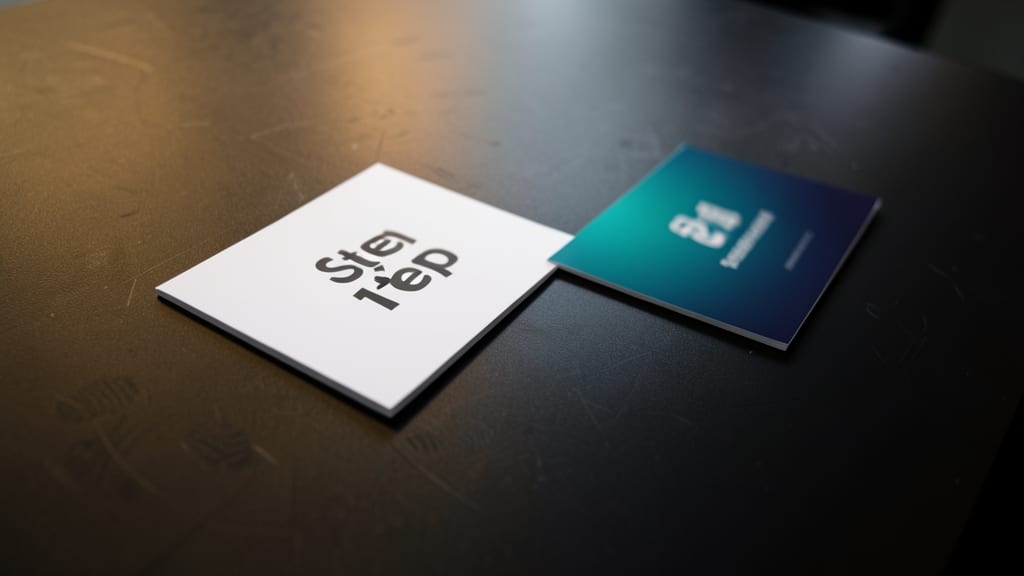
Need to guide your audience through a step-by-step process without losing their focus? The Push Transition in PowerPoint mimics physical movement—like sliding a card across a table—creating a natural, structured flow perfect for tutorials, workflows, or training materials.
This transition works by pushing one slide horizontally or vertically off-screen to reveal the next, reinforcing a logical progression. You can adjust the direction (left, right, up, or down) and speed to match your pacing, ensuring clarity. For example, use a right-to-left push for chronological steps or a top-to-bottom push for hierarchical data.
Ideal for educators, trainers, or technical teams explaining processes (e.g., software onboarding, lab procedures), this effect keeps audiences oriented—no abrupt cuts or distractions. ⚡
Morph Transition for Seamless Updates
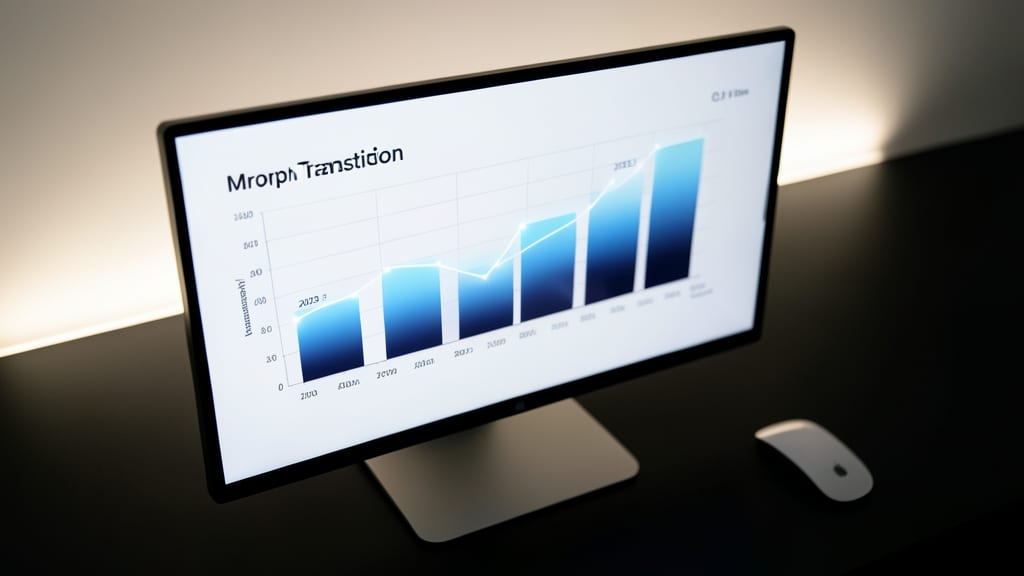
Need to update a chart or graph in your presentation without jarring your audience? The Morph Transition in PowerPoint smoothly transforms one slide into another, making incremental changes feel natural. Unlike abrupt cuts, this effect preserves visual continuity—ideal for data-driven slides where minor tweaks (like adjusting a bar chart to a line graph) should feel intentional, not disruptive.
This transition works best with similar slide layouts (e.g., charts, diagrams, or text-heavy slides with minor edits). You can control the speed (slow for emphasis, fast for quick updates) and even add a subtle sound effect to reinforce the transition. For presentations where data evolves—like financial reports or progress updates—Morph ensures your audience stays focused on the content, not the switch.
Perfect for analysts, educators, or professionals presenting evolving data, this transition keeps your slideshow polished and professional. ✨
Wipe Transition for Creative Storytelling
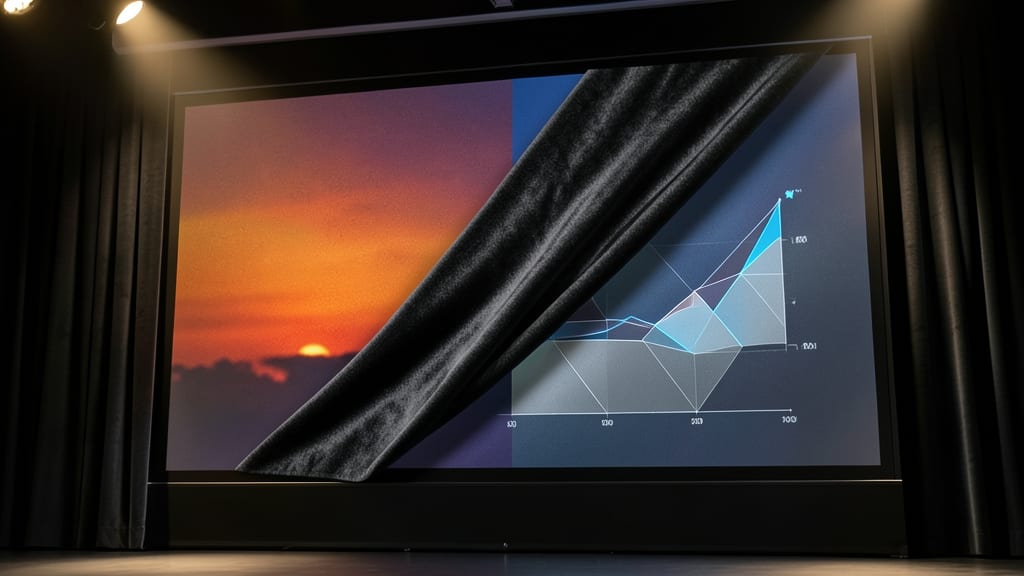
Want to turn your presentation into a visual narrative? The Wipe Transition mimics a theatrical curtain lift, revealing content with a sweeping motion that feels both dynamic and intentional.
Choose from vertical, horizontal, or diagonal wipes to control the reveal direction, and adjust the speed to match your pacing. This effect works best when paired with high-contrast slides—think bold text or striking visuals—to maximize impact. Unlike static transitions, the wipe creates a sense of progression, perfect for storytelling or artistic presentations where you want to guide the audience’s eye.
Ideal for creatives, educators, or anyone crafting a cinematic slideshow, this transition adds flair without overwhelming your message. Just avoid overusing it—save it for key moments where you want to emphasize a shift in tone or content. ✨
Random Bars Transition for High-Energy Presentations
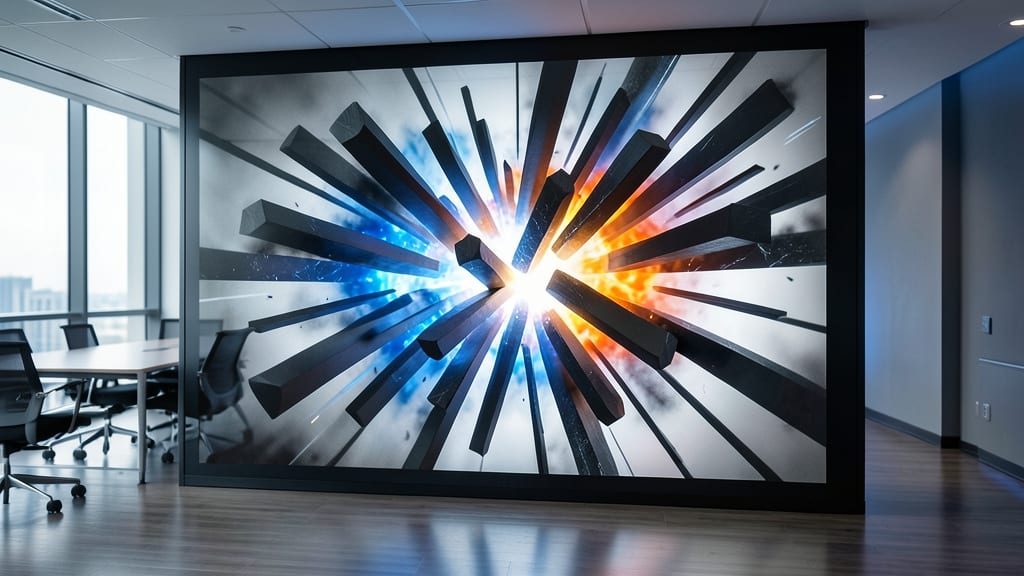
When your presentation needs to jump off the screen—literally—Random Bars delivers an unpredictable, high-energy effect that breaks the monotony of standard transitions. This effect replaces the outgoing slide with a dynamic grid of randomly sized bars that dissolve into the new content, creating a sense of excitement and spontaneity.
The playful chaos of this transition works best when paired with bold colors or abstract designs, making it perfect for brainstorming sessions, creative pitches, or youth-focused content. You can adjust the speed to control how quickly the bars appear, ensuring the effect aligns with your presentation’s rhythm. For extra flair, combine it with a sound effect (like a subtle "whoosh") to amplify the impact.
This transition shines in startup pitches, design reviews, or educational workshops where keeping energy levels high is key. Just avoid overusing it—save it for moments when you want to shock and engage your audience. ✨
None Transition for Minimalist Focus
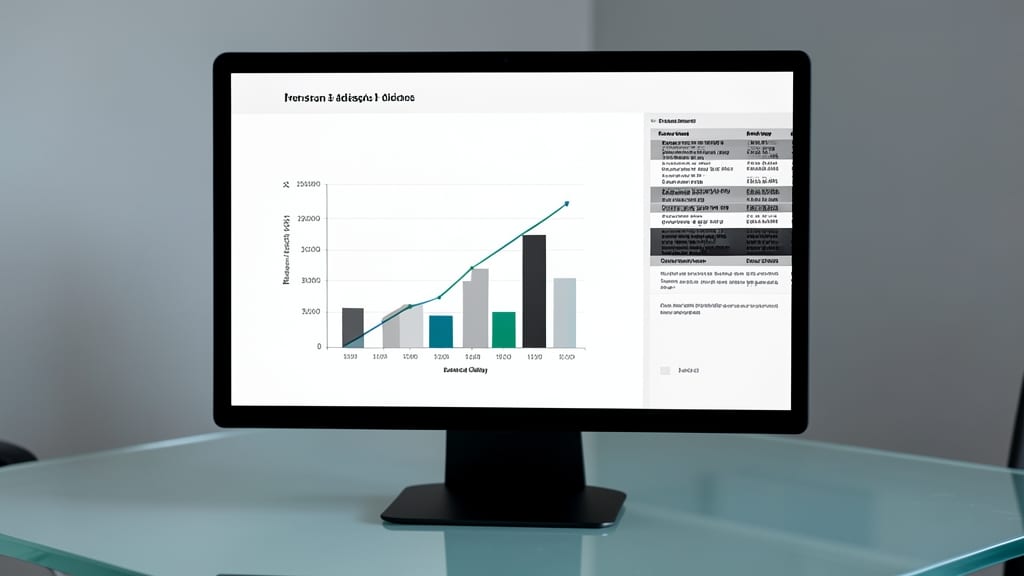
When your presentation is all about hard data, complex graphs, or meticulous research, the last thing you need is a flashy transition stealing the spotlight. The None transition in PowerPoint delivers exactly that—zero visual interruption—so your audience stays locked onto the facts, not the effects.
This isn’t just a "no transition" option; it’s a deliberate choice for clarity and professionalism. By skipping animations entirely, you eliminate distractions that could disrupt the flow of technical discussions, financial reports, or academic slides. Plus, it’s the fastest way to advance slides—just press Enter, and your content takes center stage immediately. No delays, no surprises.
Perfect for analysts, educators, or executives presenting dense material where every second counts. When your message is the star, let the None transition keep the focus where it belongs. ✨