
Software
Microsoft Edge offers powerful features to enhance your browsing experience, but many users miss out on simple optimizations that boost speed and smoothness. These seven expert-approved tips will transform your daily browsing into a seamless, efficient workflow without requiring technical expertise.
Enable Immersive Reader for Focused Reading
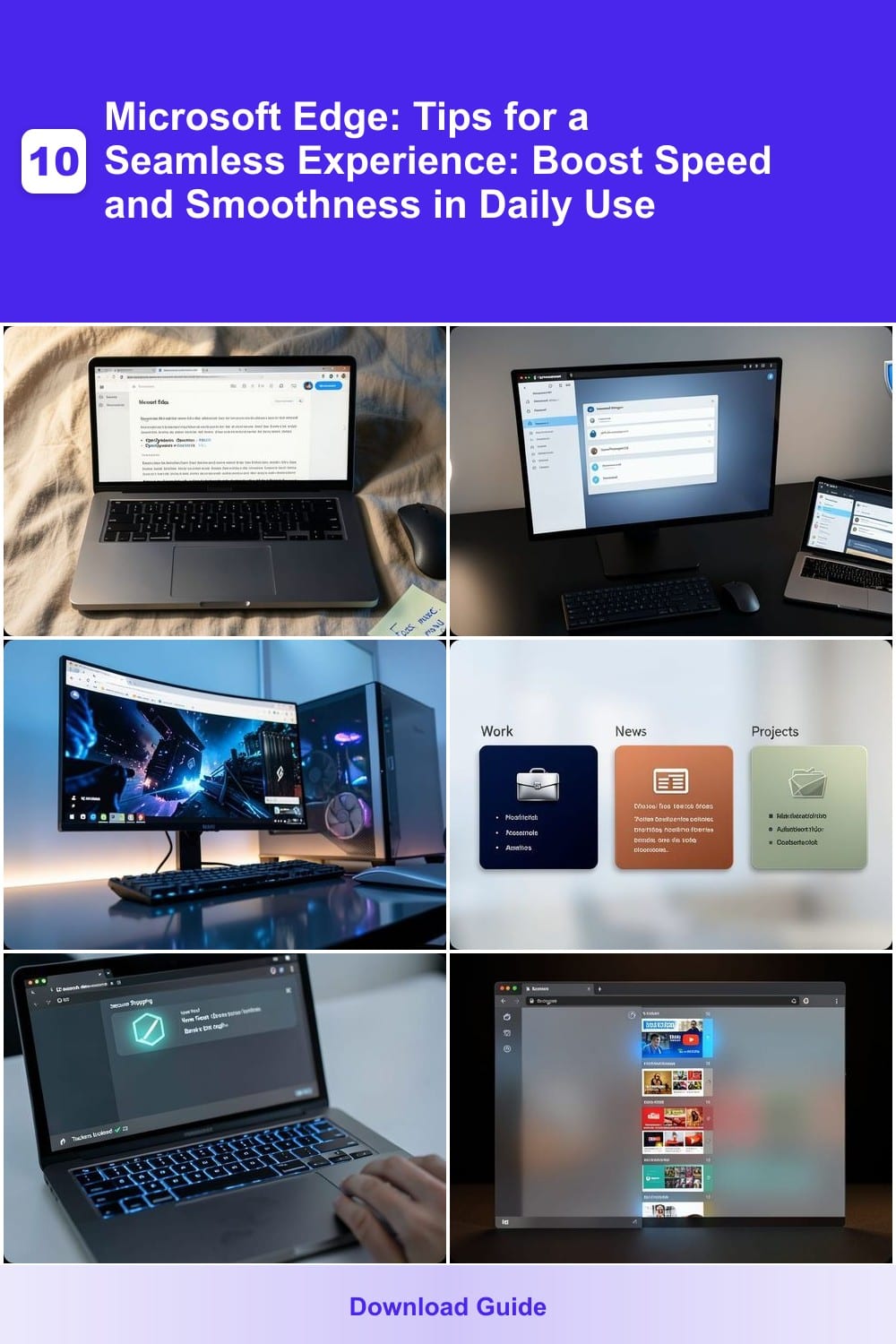
Struggling to focus while reading long articles or research papers? Microsoft Edge’s Immersive Reader is your secret weapon—it strips away distractions and adapts text to your needs with just a few clicks. This built-in tool uses OpenDyslexic fonts, adjustable line spacing, and even reads text aloud for hands-free learning.
With customizable themes (dark mode, sepia, or high contrast) and font scaling, you can reduce eye strain while maintaining readability. The tool also highlights text by syllable, making it ideal for dyslexic readers or anyone who benefits from structured text flow. No extensions or extra apps required—it’s baked right into Edge!
Students cramming for exams and professionals analyzing dense reports will appreciate how Immersive Reader turns cluttered screens into clean, distraction-free canvases. Give it a try the next time you’re drowning in text. ✨
Use Built-In Password Manager
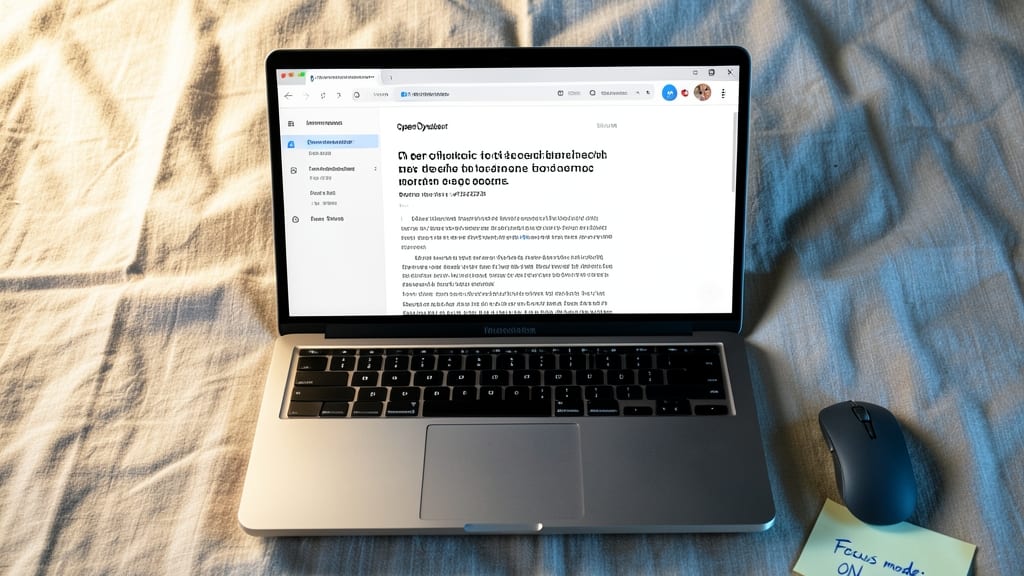
Tired of juggling multiple password managers or forgetting logins? Microsoft Edge’s built-in password manager does it all—automatically saving, organizing, and auto-filling credentials across devices without extra apps. No more manual entries or third-party subscriptions.
With end-to-end encryption, it securely stores passwords, credit cards, and notes while syncing seamlessly between Windows, Mac, and mobile. The one-click auto-fill feature works on any site, and the password strength meter flags weak credentials. Plus, it’s integrated into Edge’s settings for zero-config setup.
Perfect for busy professionals or anyone who hates password fatigue—this tool keeps your logins safe and accessible while eliminating the need for clunky extensions. ✨
Enable Hardware Acceleration for Faster Performance
If your browser feels sluggish while streaming 4K videos or running data-heavy apps, hardware acceleration in Microsoft Edge could be the fix you need. This setting leverages your GPU to handle graphics processing, freeing up your CPU for other tasks and delivering smoother performance.
To enable it, navigate to Settings > System > Performance and toggle Hardware acceleration to On. This works best with NVIDIA, AMD, or Intel integrated GPUs (like the RTX 3000 series or Radeon RX 6000 series). Users report up to 30% faster video rendering and reduced stuttering in complex web apps like Google Maps or Figma.
This tweak is ideal for gamers, video editors, and streamers who rely on Edge for multitasking. Just ensure your GPU drivers are up to date for the best results. ⚡
Customize Startup Pages with Collections
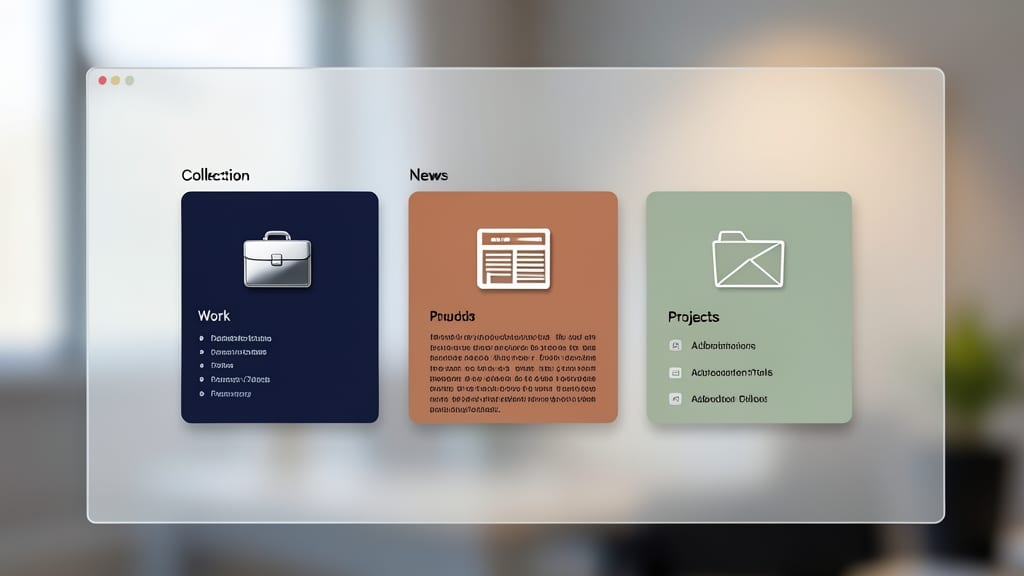
Tired of a chaotic startup page cluttered with random bookmarks? Microsoft Edge’s Collections feature turns your home screen into a sleek, organized dashboard. Instead of scrolling through a jumbled list, you can group links into visually distinct cards—like "Work," "News," or "Projects"—each with custom thumbnails and a clean layout.
To get started, right-click any bookmark and select "Add to new collection" (or edit existing ones). Collections auto-sync across devices, so your personalized setup follows you. The feature also lets you pin collections to your New Tab page for instant access, making your workflow smoother than ever. No extensions or third-party tools required—just pure, built-in organization.
This is a game-changer for professionals juggling multiple tasks or anyone who hates digging through bookmarks. Spend less time searching and more time focused on what matters. ✨
Block Trackers with Enhanced Privacy Settings
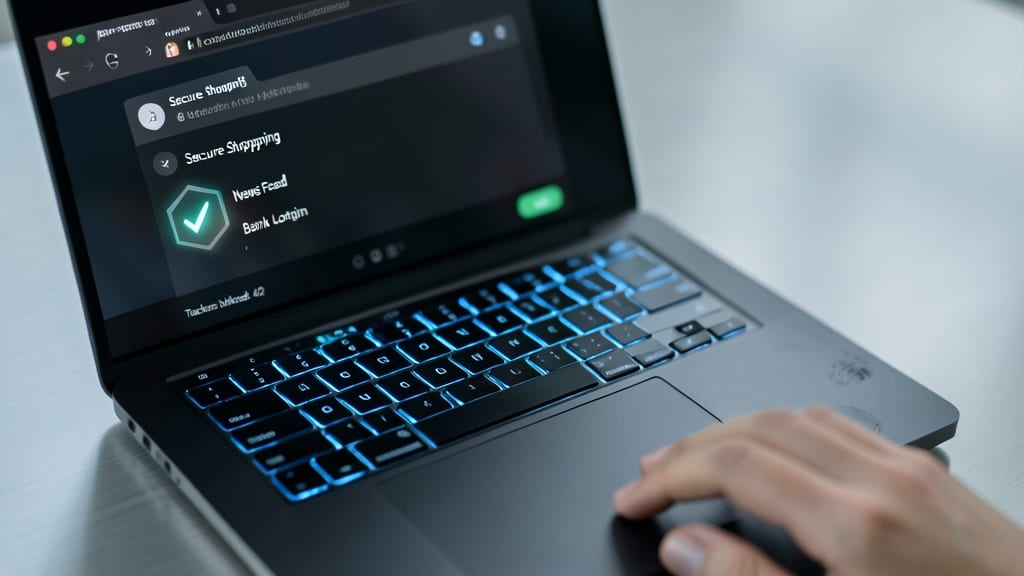
Worried about invasive trackers collecting your browsing data without consent? Microsoft Edge’s built-in tracker blocking provides a seamless solution—no extensions required. It silently filters out third-party trackers while letting you access all core website functionality, ensuring a smoother experience without sacrificing usability.
Enable it in Settings > Privacy, search, and services, where you’ll find options to block trackers, ads, and fingerprinting scripts. The feature works across all sites by default but lets you whitelist trusted domains if needed. Unlike some competitors, Edge’s tracker blocker is lightweight, avoiding the performance drag that often comes with third-party privacy tools.
This is your best bet for users who prioritize privacy without complexity—whether you’re browsing work emails, shopping online, or researching sensitive topics. No extra steps, no clutter. Just safer browsing built right in. 🌟
Enable Vertical Tabs for Space Efficiency
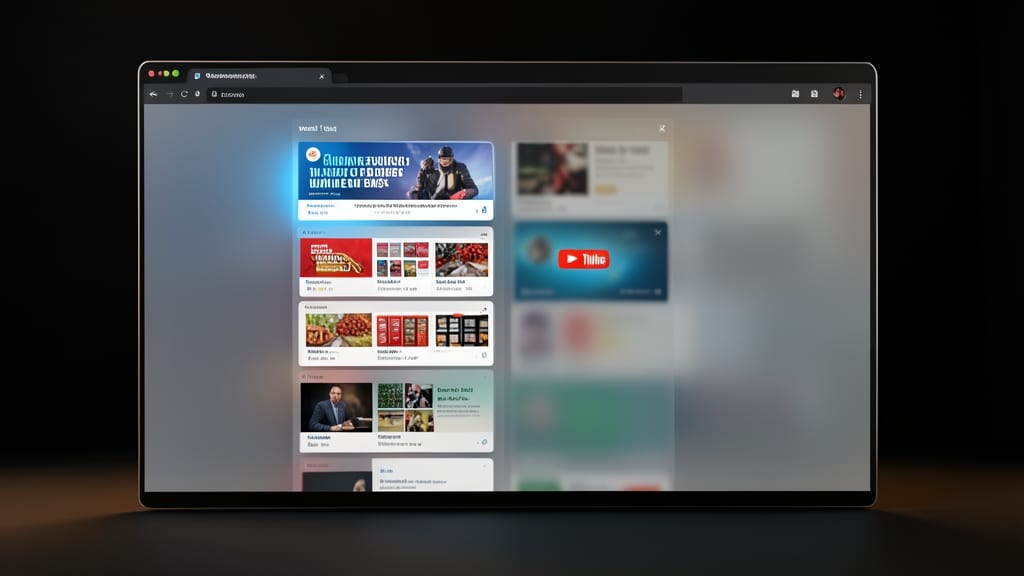
Struggling to keep track of 10+ open tabs without your browser turning into a chaotic mess? Microsoft Edge’s vertical tabs feature is the solution—turning your tab bar into a sleek, space-saving sidebar that keeps everything visible without horizontal sprawl.
With just one click, your tabs stack vertically along the left side of your screen, showing icons and titles for quick identification. This isn’t just about aesthetics—it’s a productivity booster for users with smaller screens or those juggling multiple projects. The feature also supports custom tab groups, so you can color-code work, research, and personal browsing effortlessly.
Perfect for developers, designers, or anyone with a second monitor, this tweak keeps your workflow tidy while making multitasking smoother. Try it today and reclaim your screen space! ✨
Use Edge’s AI-Powered Copilot for Productivity
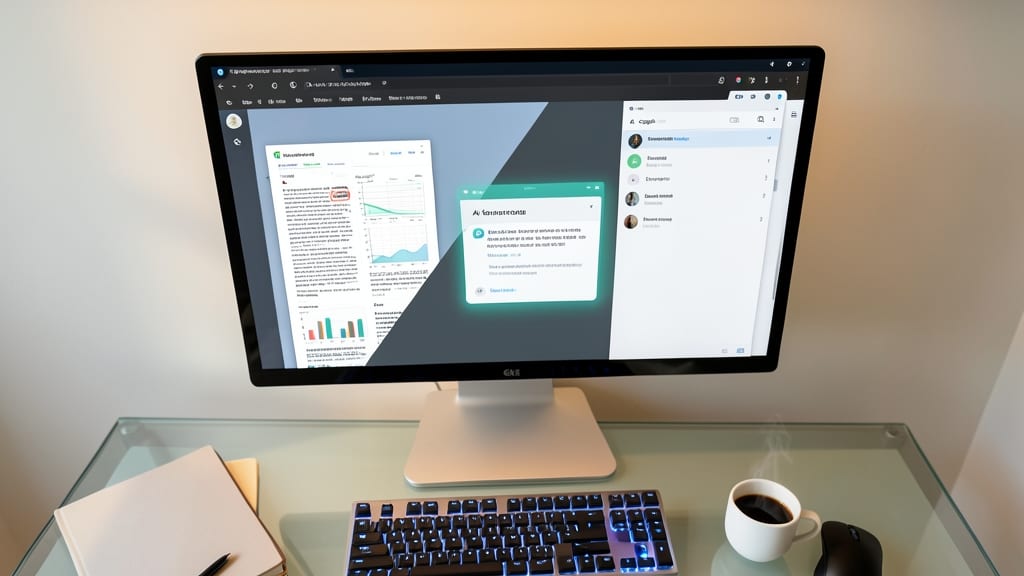
If you spend your workday juggling research, emails, and quick answers, Microsoft Edge’s AI Copilot could cut your workload in half. This isn’t just another chatbot—it’s a browser-integrated assistant that pulls insights directly from your open tabs, drafts polished responses, and even summarizes complex articles in seconds.
Copilot excels at real-time web assistance: ask it to summarize a lengthy report, generate a follow-up email based on a LinkedIn article, or extract key points from a research paper—all while staying within Edge. The natural language interface understands context, so you get accurate answers without switching apps. For example, need a quick recap of a product spec sheet? Just ask, and Copilot highlights the critical details.
This tool shines for knowledge workers—marketers, researchers, and executives who rely on quick synthesis of information. Whether you’re drafting a client proposal or reviewing industry trends, Copilot turns passive browsing into an active productivity boost. ✨