
Tip & Trick
Remote work opens doors to flexibility but also exposes you to cyber threats like phishing, malware, and data breaches. These 10 security best practices—backed by IT experts and real-world incidents—will help you create an impenetrable digital fortress from any location.
Multi-Factor Authentication for Every Account
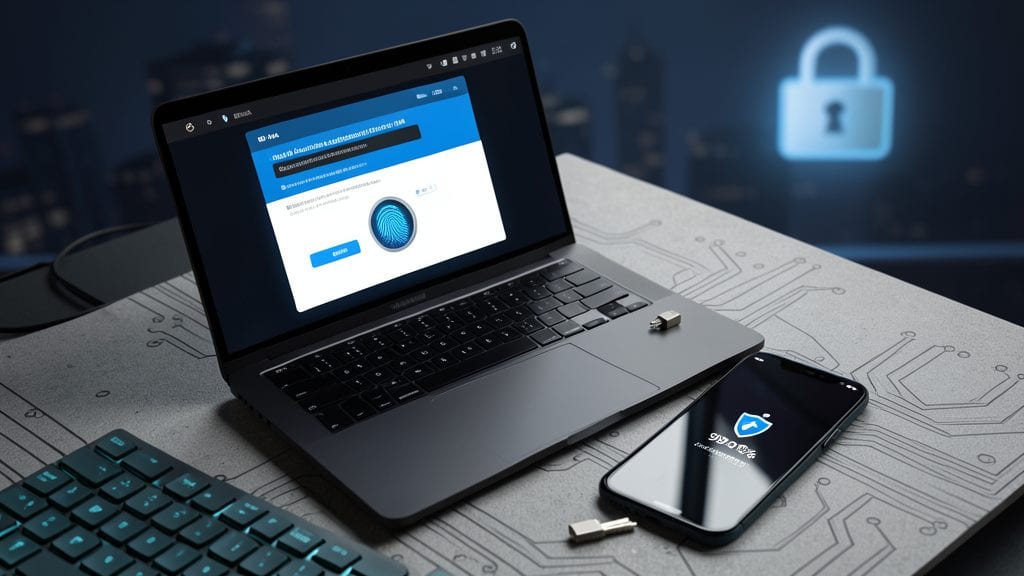
Your email, banking, and work accounts are prime targets for hackers—99.9% of credential-stuffing attacks fail when you add multi-factor authentication (MFA). This isn’t just theory; it’s a battle-tested shield that stops automated bots and even determined attackers in their tracks.
Most services now support TOTP (time-based codes via apps like Google Authenticator or Authy) or hardware keys (YubiKey)—both far more secure than SMS-based MFA. Even free options like Microsoft Authenticator or Duo Mobile eliminate the weak link of text messages, which attackers can easily intercept. For critical accounts, hardware keys offer the highest security, blocking phishing attempts entirely by requiring physical presence.
Remote workers, freelancers, and anyone handling sensitive data should enable MFA today. It takes seconds to set up but can save you from financial loss, identity theft, or a career-ending data breach. 💪
Virtual Private Network for All Connections
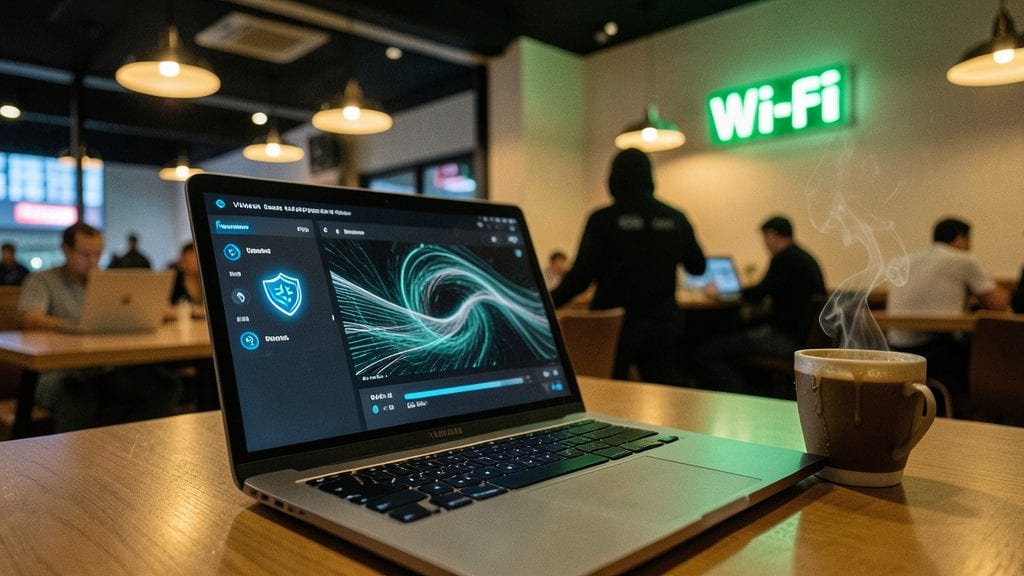
Public Wi-Fi in coffee shops and airports is a digital minefield—hackers lurk just one unencrypted connection away. A VPN (Virtual Private Network) acts as your invisible security blanket, encrypting all traffic so even if someone intercepts your data, they’ll only see gibberish.
Look for a VPN with AES-256 encryption (military-grade security), no-logs policies (ensuring your activity stays private), and kill switches (cutting your connection instantly if the VPN drops). Services like ProtonVPN or NordVPN offer user-friendly apps that auto-connect to secure servers worldwide, blocking man-in-the-middle attacks that steal passwords and financial details in real time.
This isn’t just for road warriors—freelancers, remote employees, and even casual users should enable a VPN whenever using public networks. It’s your first line of defense against digital pickpockets. ✨
Endpoint Detection and Response Software
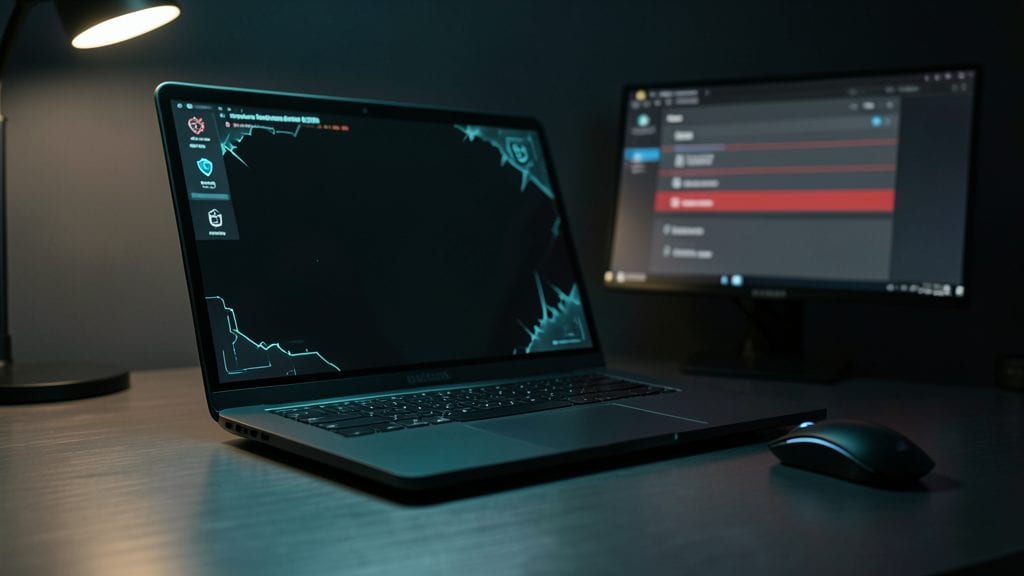
Malware doesn’t always announce itself with flashing pop-ups—often, it lurks silently in the background, stealing data or waiting for commands. That’s where Endpoint Detection and Response (EDR) software steps in, acting as your laptop’s immune system against advanced threats like ransomware or zero-day exploits.
Solutions like CrowdStrike Falcon or Microsoft Defender for Endpoint monitor fileless attacks, suspicious process behavior, and even encrypted traffic anomalies in real time. They don’t just flag threats—they automatically contain them, isolating infected files or devices before damage spreads. For Windows/Mac users handling contracts, financials, or client data, this means no more hoping your antivirus catches everything—it’s proactive defense.
This is non-negotiable for freelancers, consultants, or corporate employees whose laptops hold sensitive work. If you’ve ever feared a single click could compromise years of projects, EDR turns that fear into a battle-tested setup. ⚡
Secure Password Manager with Auto-Fill
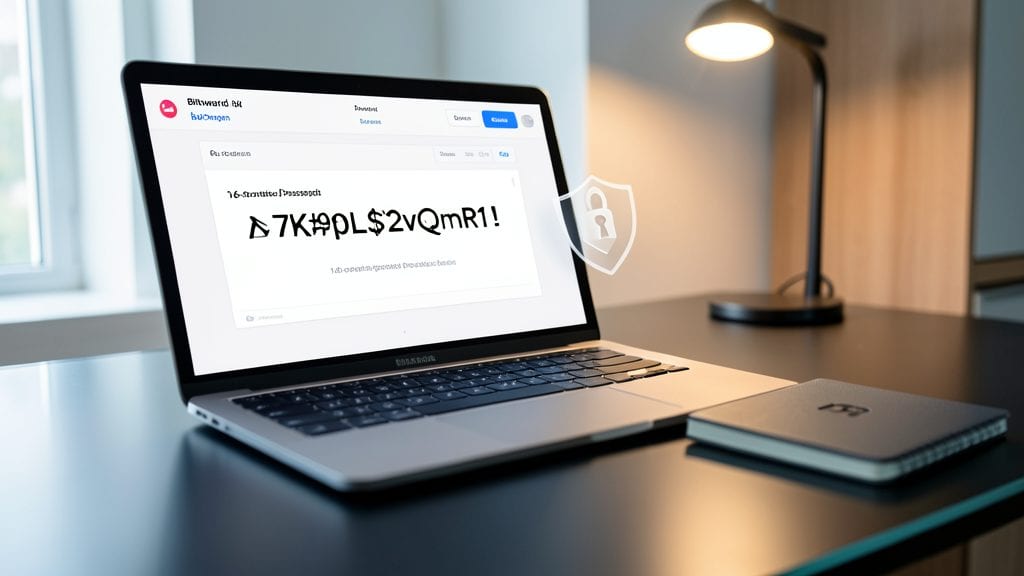
Tired of weak passwords getting hacked? A secure password manager with auto-fill is your first line of defense against credential theft—especially when working remotely. Unlike basic password storage, these tools generate 16-character passwords automatically, eliminating the temptation to reuse weak ones that get cracked in seconds.
Top solutions like Bitwarden or 1Password integrate with browsers and devices to fill logins securely, while built-in phishing protection flags suspicious sites before you click. Studies show they cut phishing success rates by 80% for remote employees by blocking fake login pages. The best part? You’ll never forget a password again—just one master passphrase unlocks everything.
Perfect for freelancers, remote teams, and anyone juggling multiple accounts. Start with a free tier to test the peace of mind. ✨
Device Encryption for Laptops and Phones
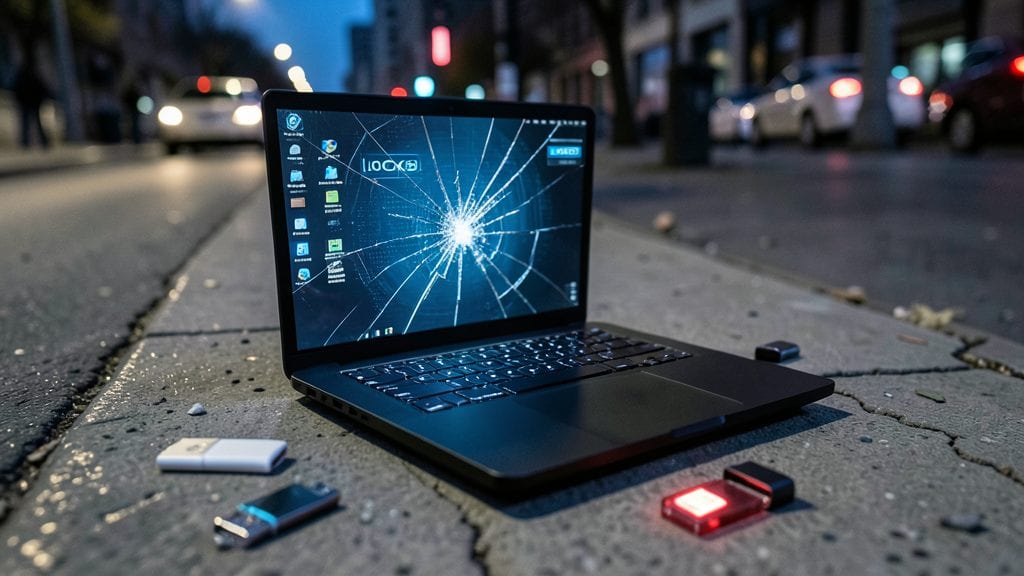
Imagine losing your laptop—or worse, having it stolen—only to realize your sensitive work files are wide open to attackers. Full-disk encryption turns that nightmare into a moot point by locking your entire device behind a military-grade shield, rendering stolen data useless without the right passphrase.
Modern operating systems make this effortless: BitLocker (Windows), FileVault (macOS), and Android Encryption (phones) all activate with a single toggle. Even budget devices like the Lenovo ThinkPad T14 or MacBook Air M1 include hardware-level encryption by default. For compliance-heavy roles, this isn’t optional—HIPAA, GDPR, and ISO 27001 all mandate it when handling client data or corporate IP.
This is your last line of defense against physical theft, whether you’re working from a café or traveling with your phone. Enable it now—it’s free, fast, and could save your career. 💻
Zero-Trust Network Access Policies
Imagine logging into your work network only to realize your "trusted" laptop is already compromised—because it was never properly verified. Zero-trust policies eliminate this risk by treating every access attempt as a potential threat, regardless of whether it's coming from inside or outside your network.
With zero-trust, every device must pass continuous authentication checks—including posture assessments for patch levels, endpoint security status, and user identity verification—before gaining access. Solutions like Microsoft Entra ID (formerly Azure AD) or Cisco Duo enforce these rules automatically, blocking lateral movement where hackers pivot from one compromised machine to another. This stops breaches like the infamous SolarWinds attack, where attackers moved undetected for months.
Perfect for remote teams handling sensitive data, zero-trust is especially critical for finance, healthcare, and government sectors where compliance demands strict access controls. 💻
Regular Security Awareness Training
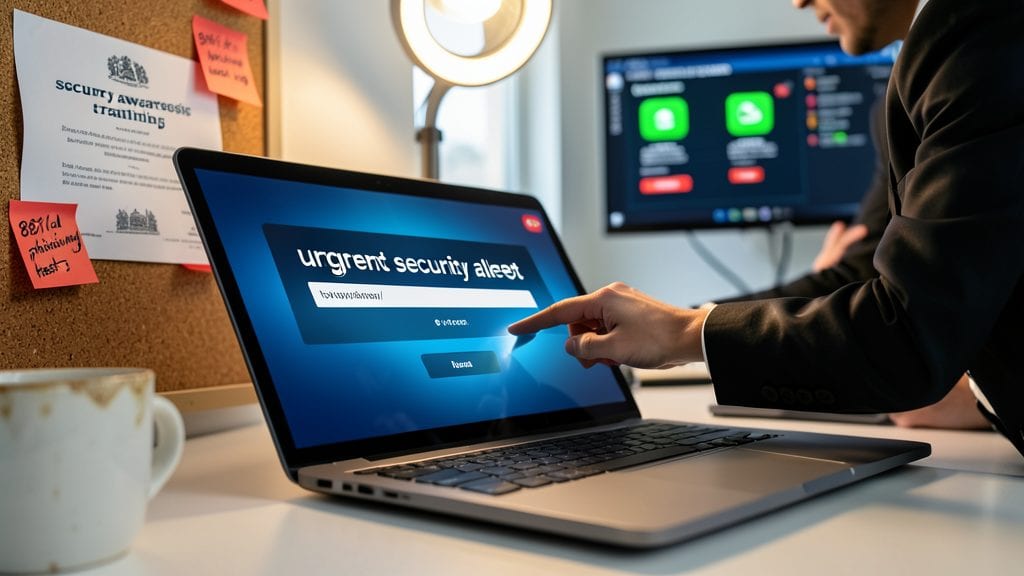
Even the most secure tech stack fails when employees click malicious links—88% of breaches start with human error. Regular security awareness training with simulated phishing tests turns your team into your strongest cybersecurity defense by exposing them to real-world scams in a safe environment.
Platforms like KnowBe4 or PhishMe deliver customizable phishing simulations (e.g., fake invoice scams or urgent "password reset" emails) and track improvement over time. Training modules cover social engineering tactics, password hygiene, and recognizing CEO fraud schemes—all tailored to your industry’s risks. The best programs even integrate with your MFA and email systems to create seamless, realistic tests.
This isn’t just for IT teams—every remote worker, from executives to interns, benefits. Companies using these programs see up to 70% fewer phishing clicks within six months, making it the most cost-effective way to harden your human firewall. ✨
Secure File Sharing with Encrypted Links
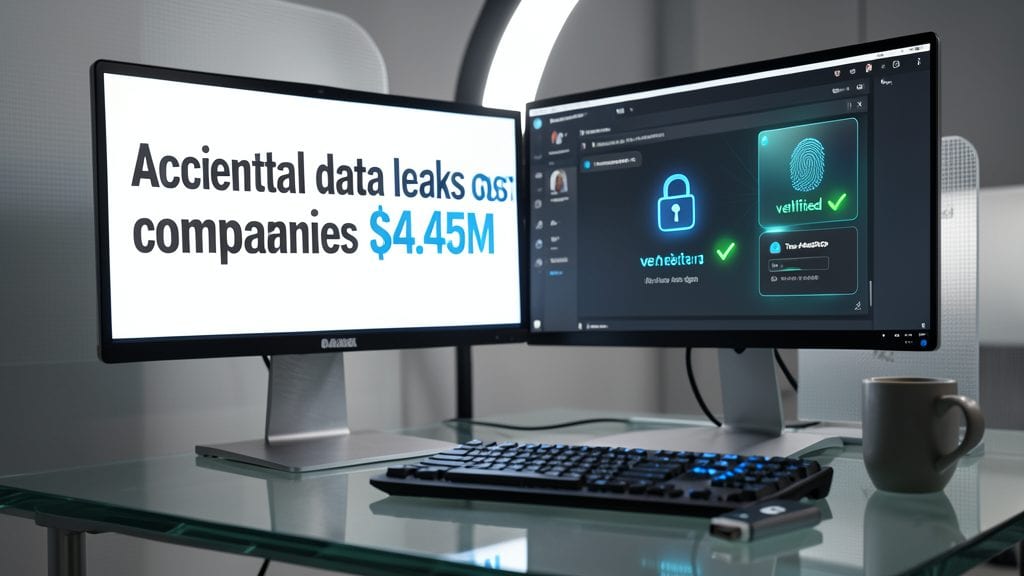
Accidental data leaks cost companies an average of $4.45 million—but encrypted file-sharing links cut that risk by 90% with just a few clicks. Unlike traditional file-sharing links that anyone can access, encrypted links require recipients to authenticate before viewing, ensuring only authorized eyes see your sensitive documents.
Services like Microsoft OneDrive and Google Drive offer built-in encrypted link options that add password protection, expiration dates, and viewer restrictions—all without needing third-party tools. For extra security, use Box Shield or Dropbox’s secure links, which log access attempts and alert you to suspicious activity. These features are especially critical for remote teams exchanging contracts, financial reports, or client data.
Perfect for freelancers, HR teams, or legal professionals who frequently share confidential files, encrypted links provide peace of mind without sacrificing convenience. 💻
Physical Security for Home Offices
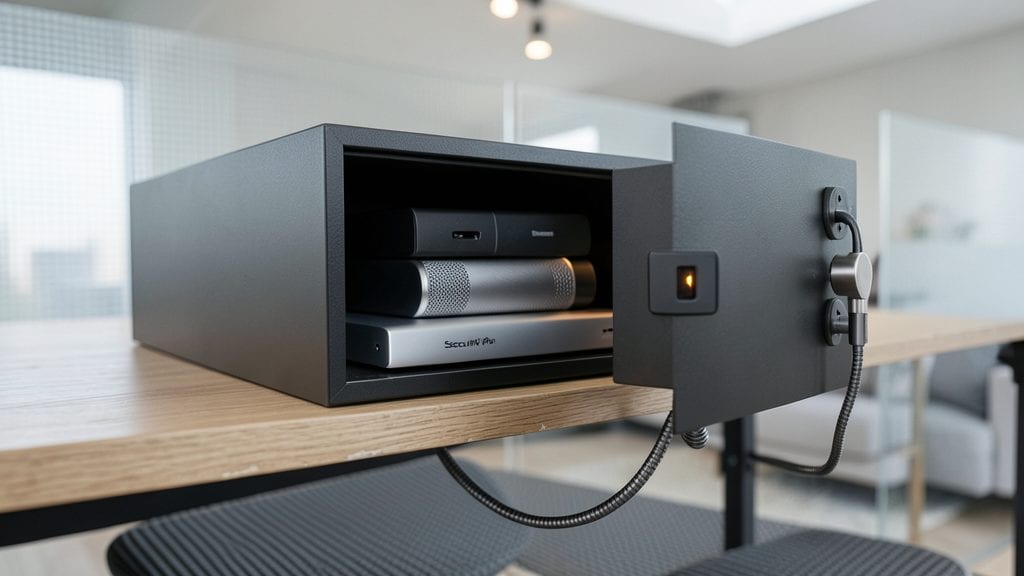
While you’ve locked down your digital defenses with VPNs and MFA, physical security for your home office is the final piece of the puzzle. A lockable cabinet (like the SecurKey Pro) keeps laptops and hard drives out of reach, while a cable lock (such as the Kensington MicroSaver) prevents unauthorized removal in seconds.
Don’t overlook webcam covers—many attackers exploit unsecured cameras to spy on sensitive workspaces. These tools add minimal cost but block a common attack vector often ignored in remote security plans. A $20 privacy shutter can stop shoulder surfing and unauthorized video feeds instantly.
Freelancers, consultants, and anyone handling client data should prioritize this layer. It’s the simplest way to ensure your physical workspace matches your digital security efforts. 💪
Automated Patch Management System
If you’ve ever clicked "Remind me later" on a software update, you’ve just handed attackers an open door. Automated patch management systems eliminate this risk by closing vulnerabilities the moment they’re discovered—before hackers can weaponize them. Unlike manual updates that get delayed or forgotten, these tools scan your Windows, Linux, and macOS systems 24/7, prioritizing critical fixes for zero-day exploits and outdated libraries.
Solutions like Patch Manager Plus or WSUS (Windows Server Update Services) integrate with your existing IT stack to deploy patches instantly across fleets of devices. They even handle third-party software (think Adobe, Java, or Chrome) that often slips through OS-level updates. With real-time vulnerability databases and compliance reporting, they’re the unsung hero of breach prevention—especially for remote teams where unpatched software is the #1 entry point for ransomware.
This is non-negotiable for IT admins, but even solo remote workers benefit from lightweight tools like Patch My PC or SolarWinds RMM. Set it up once, and you’ll sleep easier knowing your system stays one step ahead of cybercriminals. 💪