
Microsoft Office
Mastering SharePoint can transform your team’s collaboration—but where do beginners start? These eight essential tips cut through the complexity, offering quick, actionable wins to boost productivity without overwhelming you.
Use Modern Document Libraries for Simplified File Management
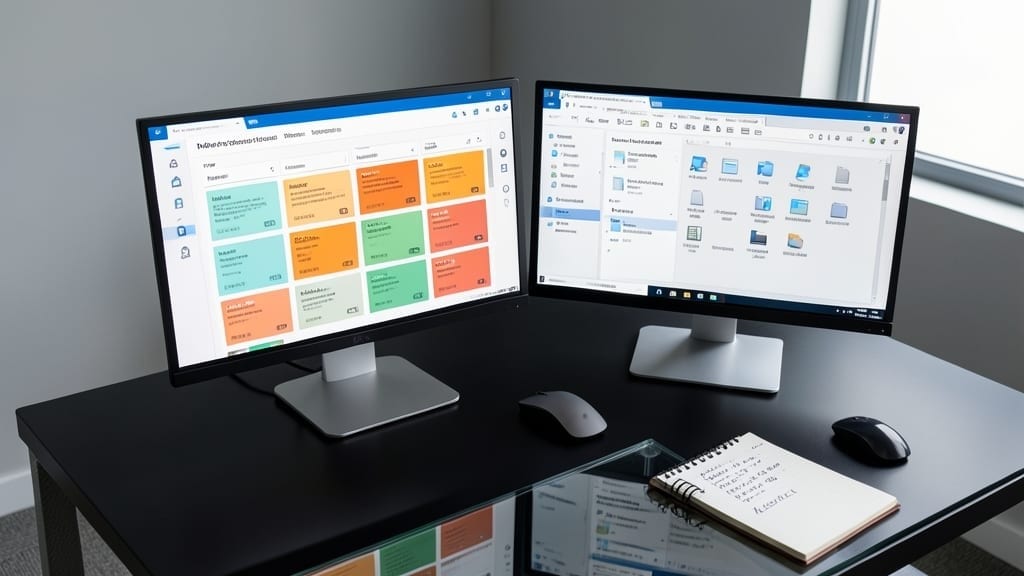
Tired of digging through endless folders to find that one file? SharePoint’s Modern Document Libraries replace traditional folder structures with a smarter, metadata-driven system that lets you search and filter files by type, author, or date—no more guessing games.
With columns for custom properties (like project name or status), you can instantly sort documents by relevance. Version history tracks changes automatically, so recovering lost edits is as easy as clicking a dropdown. Libraries also integrate with Office apps, so edits in Word or Excel sync seamlessly back to SharePoint.
Perfect for teams juggling multiple projects—marketing, HR, or IT—this approach cuts clutter and speeds up collaboration. Try it today and say goodbye to file chaos! 💻
Leverage OneDrive Sync for Offline Access and Seamless Editing

Tired of losing work because your Wi-Fi dropped mid-edit? OneDrive’s real-time sync ensures your files stay accessible offline—and automatically update when you reconnect. No more frantic "save as" scrambles or version chaos when you’re on the go.
With OneDrive sync enabled, your SharePoint files mirror locally, letting you edit in Word, Excel, or PowerPoint without an internet connection. Changes auto-sync the moment you’re back online, thanks to Microsoft’s background sync technology. Even better, the 5GB free storage (with 1TB+ options for business plans) gives you room to sync everything from reports to project drafts.
Perfect for freelancers, remote teams, or anyone who’s ever hit "save" too late. Your progress is always safe—no matter where your next meeting takes you. ✨
Create Custom Views to Filter Information Instantly
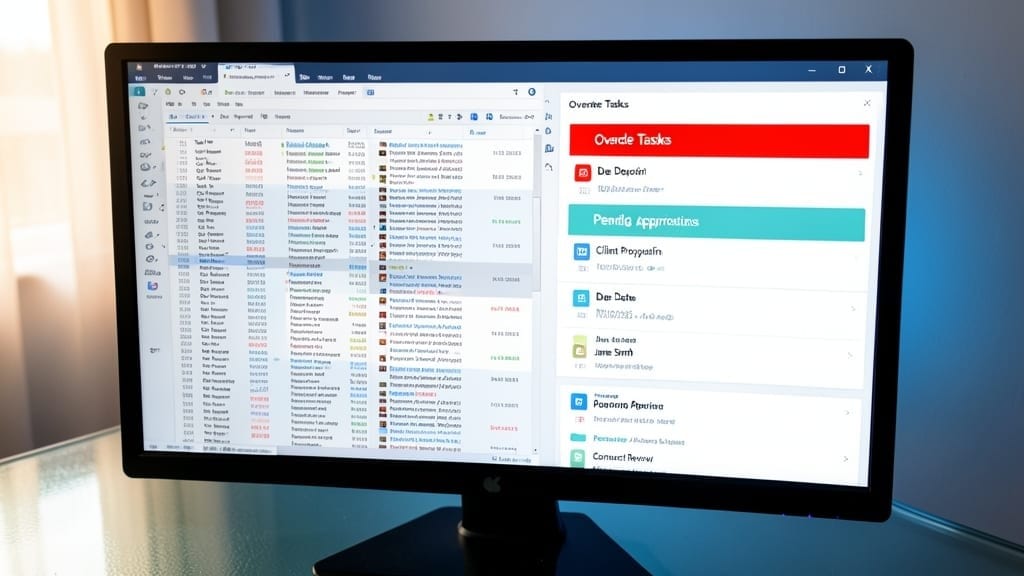
Drowning in a sea of lists and documents? Custom views in SharePoint let you tailor what you see to your exact needs—no more scrolling through irrelevant data. Whether it’s tracking overdue tasks or filtering your approvals, this feature transforms clutter into clarity in seconds.
Create views with just a few clicks by sorting columns (like status or priority) and applying filters (e.g., "Show only my items"). SharePoint even saves these views for quick access later. For example, a project manager can instantly see pending approvals, while a team lead can monitor high-priority deadlines—all without leaving the platform.
Perfect for busy professionals juggling multiple roles, custom views keep your workspace focused and efficient. Try it today to reclaim hours lost to manual sorting! ✨
Automate Workflows with Power Automate for Repetitive Tasks

Tired of spending hours every week chasing down approvals or sending manual notifications? Power Automate turns repetitive tasks into automated workflows—no coding required.
With pre-built SharePoint connectors, you can trigger actions like sending email alerts when a document is uploaded or automatically approving expense reports that meet criteria. The drag-and-drop interface lets you design workflows in minutes, and templates for common scenarios (like ‘Send a custom email when an item is created’) make setup effortless. For teams drowning in administrative busywork, this tool can reclaim up to 5 hours weekly.
Perfect for project managers, HR teams, or anyone juggling approvals, Power Automate integrates seamlessly with SharePoint, Outlook, and Teams—so you’re not just saving time, you’re future-proofing your workflows. ✨
Master the Quick Launch Navigation for Faster Site Access
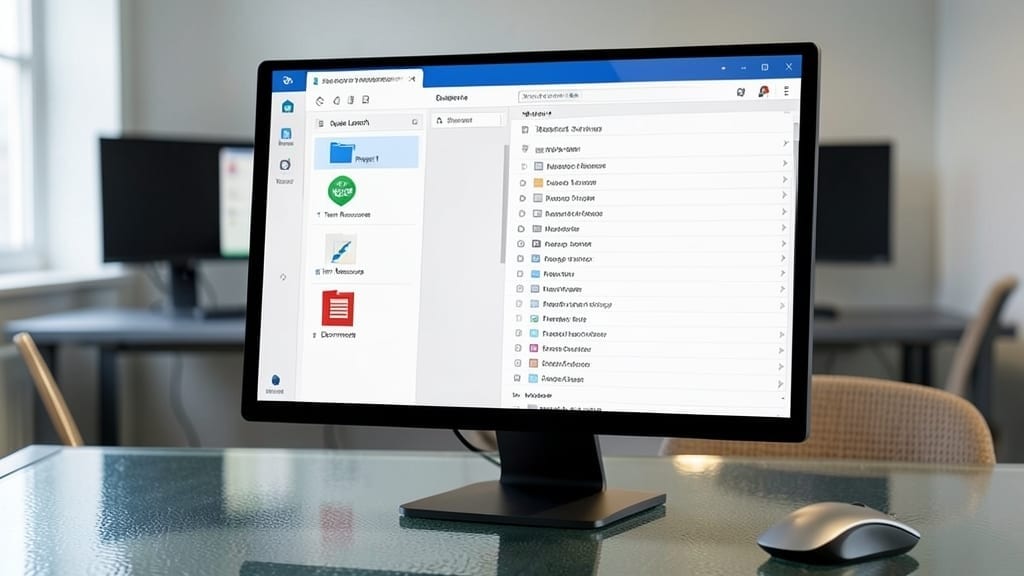
Tired of scrolling through endless navigation menus every time you need to jump to a project site or team resource? The Quick Launch feature in SharePoint lets you pin your most-used sites and lists directly to the left-hand navigation bar—cutting clicks by up to 50% for power users.
To customize it, simply click the gear icon next to any site or list in the navigation, then select "Pin to Quick Launch." You can also rearrange items by dragging them into your preferred order. This isn’t just about speed—it’s also a lifesaver for new team members, who’ll instantly see the most critical resources without asking for help. Pro tip: Use this for department-specific sites or frequently accessed lists like company announcements or project trackers.
Perfect for managers, HR teams, or anyone coordinating across multiple SharePoint sites, this tweak turns navigation from a hassle into a one-tap experience. ⚡
Enable Co-Authoring in Office Files for Real-Time Collaboration

Tired of emailing revised documents back and forth, only to lose track of the latest version? Co-authoring in SharePoint lets teams edit Word, Excel, and PowerPoint files simultaneously—no more "finalv3final_final.docx" chaos.
With real-time collaboration enabled, multiple users can see each other’s changes instantly, and SharePoint automatically merges edits (no more "John’s section overwrote mine" headaches). Works seamlessly with Microsoft 365, and even shows user avatars to track who’s editing what. Perfect for brainstorming sessions or last-minute project tweaks.
This feature is a game-changer for marketing teams, legal docs, or remote groups—anyone who needs to collaborate without delays. Just upload the file to SharePoint, click "Share," and enable co-authoring in seconds. ✨
Set Up Alerts for Critical Updates or Changes

Project deadlines and document updates slipping through the cracks? SharePoint’s alert system is your secret weapon for staying on top of critical changes—without manually checking every file or list.
Set up instant email notifications for specific libraries, lists, or even individual items (like contracts or approval workflows). You can choose alerts for new additions, edits, or deletions, and customize them to include file details or links. For managers tracking timelines, this means no more missed revisions or last-minute surprises—just timely updates delivered straight to your inbox.
Perfect for project leads, HR teams, or anyone overseeing shared documents, this feature turns passive file storage into an active collaboration hub. No more guessing—just real-time awareness of what matters most. ✨
Use SharePoint Mobile App for On-the-Go Productivity

Forget being tied to your desk—SharePoint’s mobile app brings full productivity to your pocket. Whether you’re in the field, on a train, or working remotely, this app lets you access, edit, and share documents from your smartphone without needing a desktop.
The app supports real-time updates to lists and libraries, offline mode for when connectivity is spotty, and quick file previews for Word, Excel, and PowerPoint. You can even upload photos or notes directly from your device, making it perfect for field teams or sales professionals who need to log updates instantly. Push notifications keep you informed of changes or approvals, so nothing slips through the cracks.
This is your secret weapon for remote teams, contractors, or anyone who needs SharePoint on the move. With a few taps, you’ll stay as productive outside the office as you are inside. ✨