
Microsoft Office
Mastering Microsoft Word can transform how you work—saving hours weekly. These seven game-changing tips and tricks for Microsoft 365 Word will help you write faster, format smarter, and automate repetitive tasks like a pro.
Quick Parts Gallery for Reusable Text Blocks
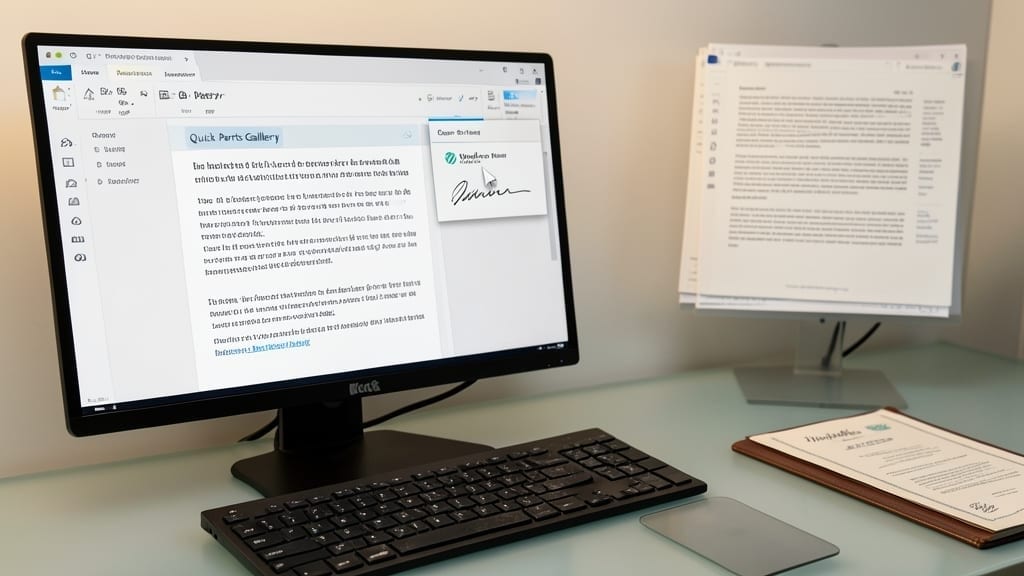
Tired of retyping the same disclaimers, signatures, or legal boilerplate in every document? The Quick Parts Gallery in Microsoft 365 Word turns repetitive text into reusable blocks with just a few clicks—no copy-pasting required.
To get started, type your standard text (like a company signature or copyright notice), highlight it, and click Insert > Quick Parts > Save Selection to Quick Parts Gallery. Now, access your saved blocks anytime via Insert > Quick Parts—or use the shortcut Ctrl+F3 to insert them instantly. Pro tip: Organize blocks into custom categories for easy navigation, and update them in one place across all documents.
This feature is a game-changer for legal professionals, HR teams, or academics who juggle templates and standardized text daily. Say goodbye to manual retyping and hello to seamless efficiency! ✨
Track Changes with Customized Markup
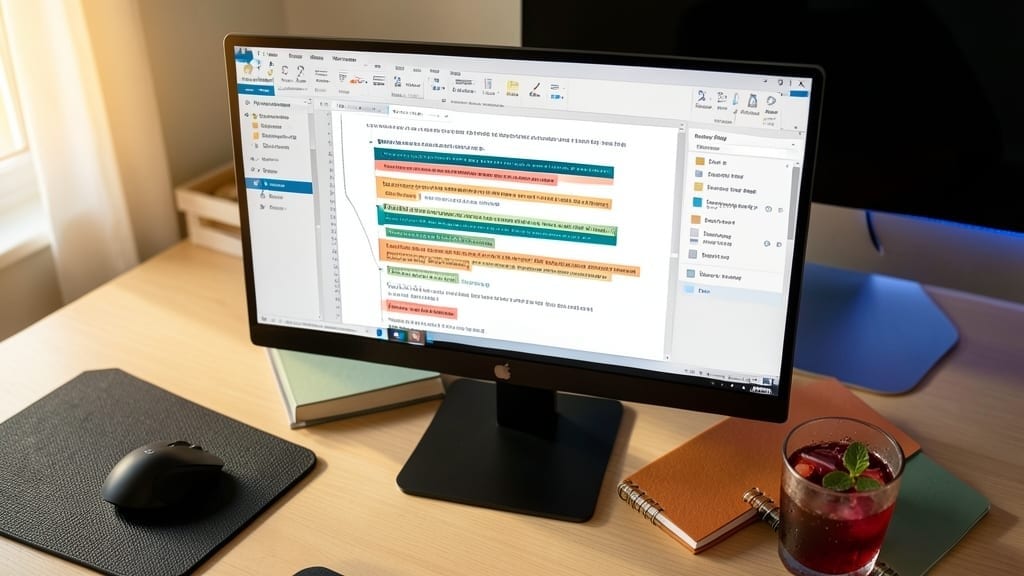
Tired of track changes turning your document into a chaotic mix of colors? Microsoft 365 Word lets you assign unique colors to reviewers, so every edit—whether it's a legal review, marketing feedback, or technical notes—stands out clearly. This isn’t just about visibility; it’s about collaboration clarity in projects where multiple stakeholders weigh in.
To customize, go to Review > Track Changes > Change Tracking Options, then assign a distinct color (e.g., blue for editors, green for subject-matter experts). You can even label reviewers in the markup bar for instant recognition. Pro tip: Use bold colors for urgent feedback and softer tones for minor tweaks to streamline approvals.
This trick is a game-changer for legal teams, academic researchers, or marketing agencies juggling feedback from multiple sources. No more guessing who suggested what—just color-coded, organized chaos turned into actionable insights. ✨
Navigation Pane for Large Documents
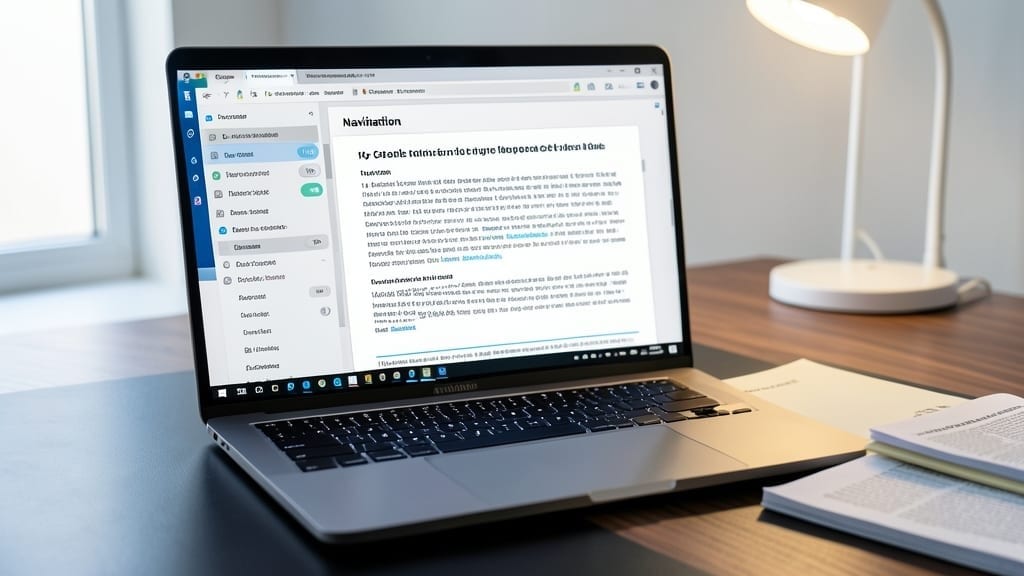
Drowning in a 50-page report or a thesis with 200+ headings? The Navigation Pane in Microsoft 365 Word turns scrolling into instant jumps—no more page-by-page frustration. With a single click, you can pinpoint sections, review comments, or even locate specific pages by number, saving minutes (or hours) daily.
Access it via View > Show > Navigation Pane (or press Ctrl+F for quick search). The pane displays three tabs: Headings (for structured documents), Pages (for direct jumps), and Results (for comments or search terms). Pro tip: Use pinning to keep frequently visited sections at the top—ideal for legal briefs or research papers where you revisit key clauses.
This hidden gem is a game-changer for academics, lawyers, and report writers who juggle dense documents. Master it, and you’ll reclaim focus time that used to vanish in endless scrolling. ✨
One-Click Table Formatting with Styles
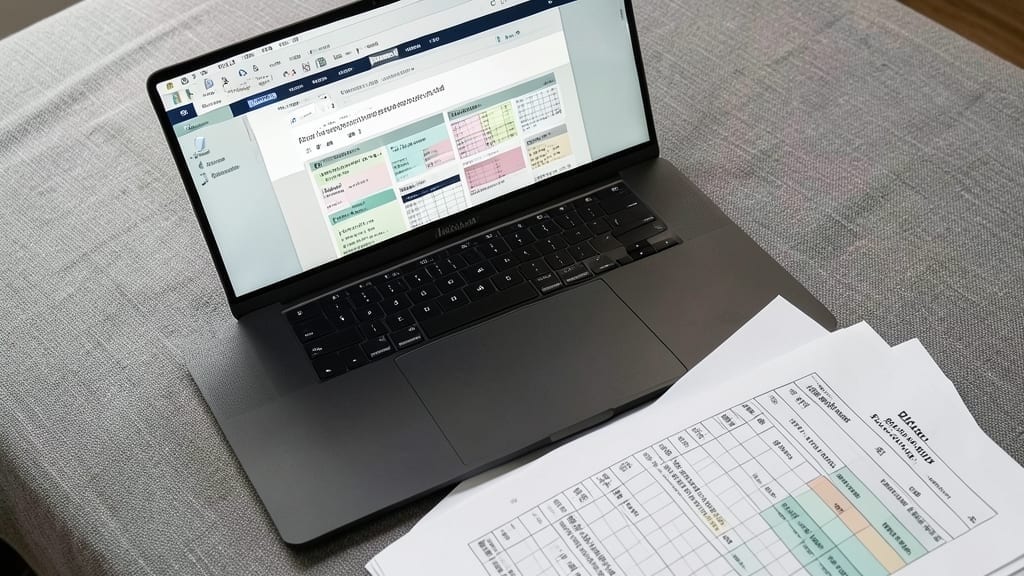
Tired of manually adjusting table borders, fonts, and colors for polished reports? Microsoft 365 Word’s built-in table styles let you apply professional designs with a single click—no design degree required.
Simply select your table, then head to the Design tab where you’ll find 30+ pre-formatted styles (from sleek grids to classic financial layouts). Need something more specific? Use the Table Style Options dropdown to tweak shading, borders, and fonts without touching the ribbon. Perfect for financial spreadsheets or data-heavy presentations where consistency matters.
Accountants, project managers, and educators will love this time-saver. Skip the formatting headaches and focus on the content that truly matters. ✨
Dictation Feature for Hands-Free Writing
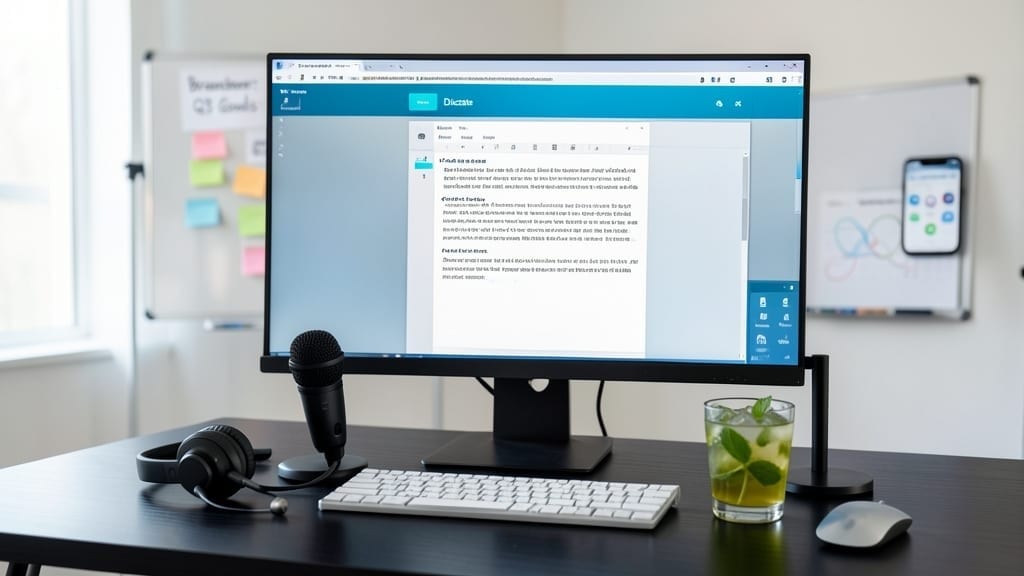
Tired of typing while juggling meetings, calls, or brainstorming sessions? Microsoft Word’s Dictation Feature lets you speak your thoughts directly into the document—no keyboard required. It’s like having a real-time transcriptionist built into your workflow, with accuracy rates of 95%+ for clear speech.
To get started, simply navigate to Home > Dictate (or press Windows + Ctrl + H for a shortcut) and begin speaking. The tool handles punctuation, formatting, and even complex commands like inserting tables or bullet points. It also supports multiple languages, making it perfect for multilingual teams or global projects.
This feature shines for journalists, lawyers, or anyone who multitasks—think note-taking during client calls or drafting emails while walking. Just ensure a quiet environment and a decent microphone for best results. ✨
Smart Lookup for Instant Definitions
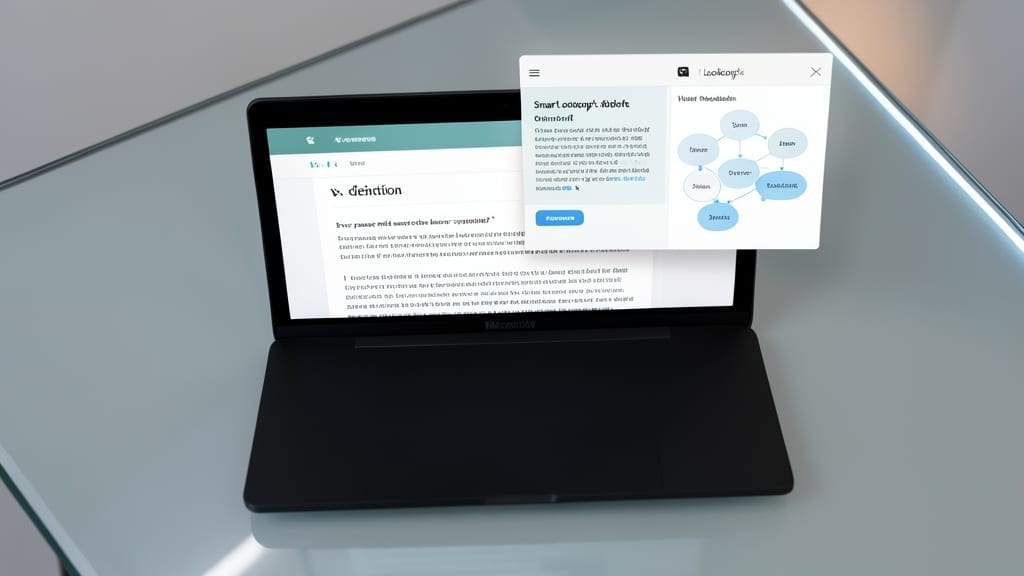
Ever paused mid-sentence to chase down a definition or synonym? Microsoft 365 Word’s Smart Lookup feature eliminates that frustration by bringing instant research right to your cursor. No more tab-switching or breaking your workflow—just right-click any word to see definitions, related terms, and even web results.
To use it, simply right-click a word and select Smart Lookup from the context menu. The sidebar displays a definition, synonyms, and even visual examples (like images or diagrams) from the web. For writers, this means verifying tone or nuance without leaving your draft, while students can quickly fact-check sources. The feature also integrates with Bing for broader research, making it a powerhouse for anyone who needs to verify information on the fly.
This trick is a game-changer for writers, students, and professionals who juggle research and drafting. Whether you’re crafting a report or brainstorming ideas, Smart Lookup keeps your focus where it belongs—on your work. ✨
Macros to Automate Repetitive Tasks
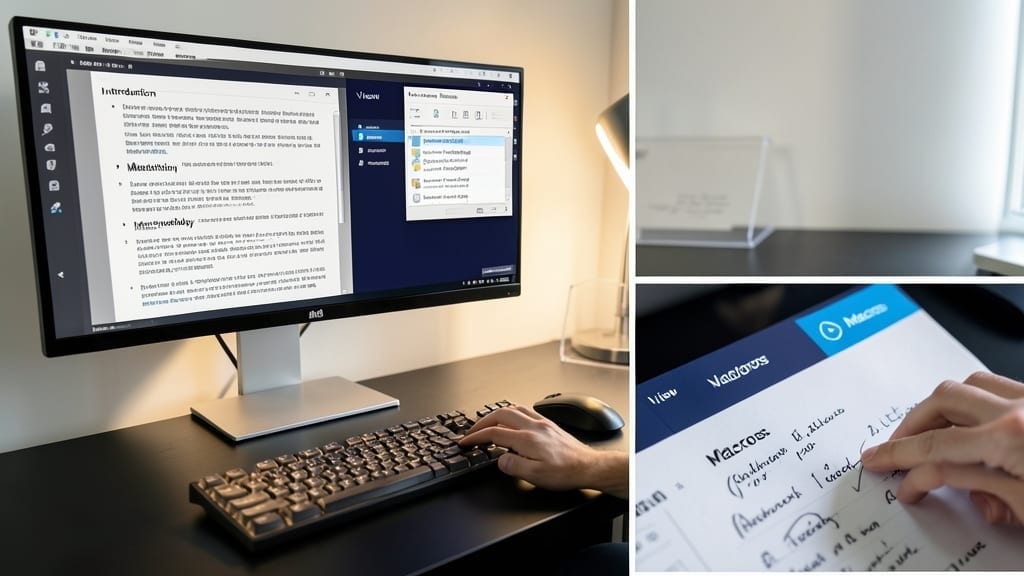
Tired of manually formatting the same document sections or entering identical data over and over? Macros in Microsoft 365 Word let you record and replay complex sequences of actions with just one click—saving hours across projects.
To get started, press Alt + F8 to open the macro dialog, then click Record Macro to begin. Perform your repetitive tasks (like applying styles, inserting tables, or updating placeholders), and Word will store every keystroke and action. Once saved, run the macro instantly via the Developer tab or assign it to a custom button. For advanced users, you can even edit the underlying VBA code to fine-tune logic.
This is a game-changer for professionals in legal, HR, or administrative roles who juggle templates, reports, or data-heavy files. Automate your workflow and reclaim focus for what truly matters. ✨