Tip & Trick
Microsoft Teams is more powerful than most users realize. These 10 underutilized tips and tricks for 2023 will transform how you collaborate, save time, and work smarter—whether you're managing teams or just trying to stay organized.
Quickly Mute or Unmute All Participants in Meetings

Struggling to keep large meetings on track when background noise or side conversations derail discussions? Microsoft Teams’ Mute All feature lets you instantly silence every participant—no need to hunt through settings or ask attendees to mute themselves manually.
During a meeting, simply click the microphone icon in the meeting controls and select \"Mute all participants\" to cut through distractions in one click. Need to unmute? Repeat the process, and Teams will restore audio for everyone. This works seamlessly on desktop, web, and mobile, making it perfect for chaotic brainstorming sessions, client calls, or training workshops where focus is critical.
Trainers, managers, and remote teams will appreciate how this feature saves time and keeps discussions professional—no more awkward pauses while everyone scrambles to mute their microphones. ⚡
Use 'Shift + Tab' to Jump Between Active Tabs
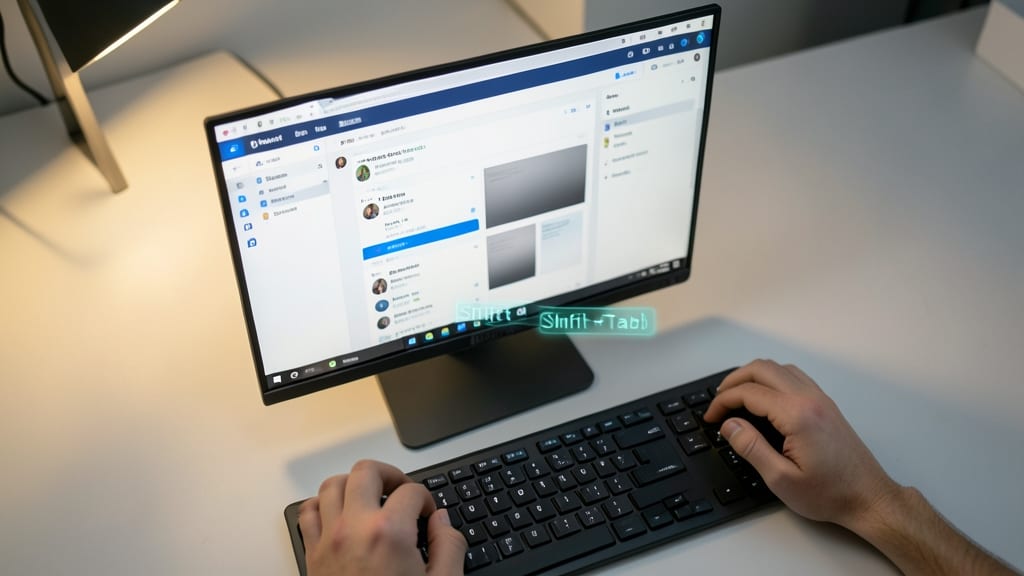
Juggling between chats, channels, and files in Microsoft Teams can feel like a never-ending tab-switching marathon—but there’s a secret shortcut that cuts that time in half. The Shift + Tab combo lets you cycle backward through your open tabs with a single keystroke, making it perfect for power users who bounce between conversations, documents, or meeting invites.
Here’s how it works: Instead of clicking the back arrow or scrolling through the taskbar, press Shift + Tab to jump instantly to the previous active tab. Need to switch between a client chat, a shared OneNote file, and a team channel? No problem—this shortcut keeps your workflow fluid. It’s especially useful when you’re deep in focus mode and want to avoid breaking concentration with a mouse click.
This trick is a game-changer for developers, project managers, or anyone who multitasks across Teams’ features daily. Save seconds (or minutes) every hour by mastering this underrated shortcut. ⚡
Pin Important Messages in Chats for Easy Reference
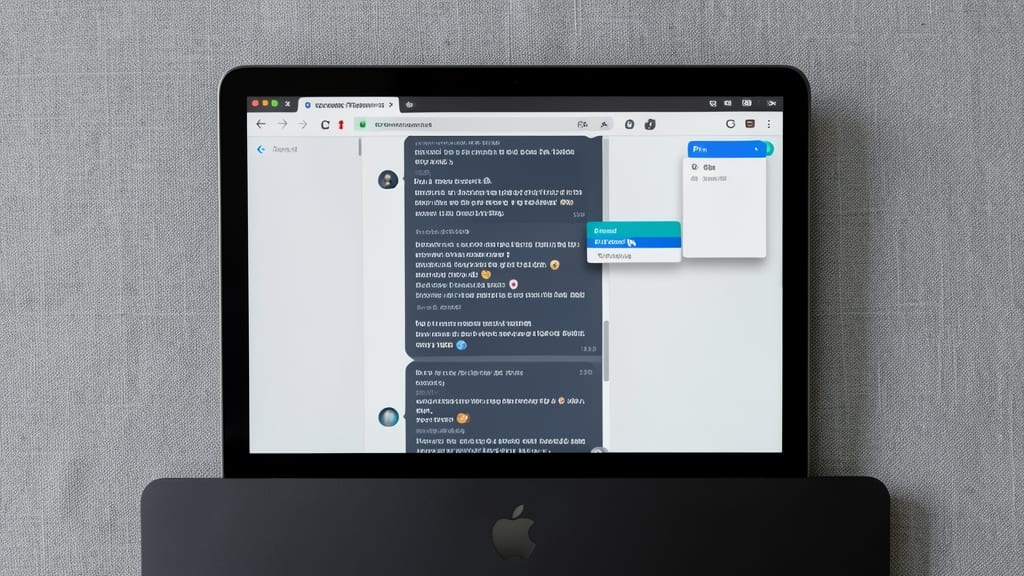
Frustrated by scrolling endlessly to find that one critical message buried in a long chat thread? Microsoft Teams’ pin feature keeps your most important instructions, deadlines, or troubleshooting steps visible at the top—no more digging through conversations.
To pin a message, right-click it in the chat and select "Pin", or use the three-dot menu. You can pin up to 3 messages per chat, making it perfect for onboarding guides, meeting notes, or client requirements. The pinned messages stay visible even when new replies come in, so you’ll never miss them again.
This trick is a game-changer for project managers, IT support teams, or anyone sharing repetitive instructions. Save time and reduce confusion by keeping key details front and center. ✨
Create Custom Status Messages with Emojis and GIFs
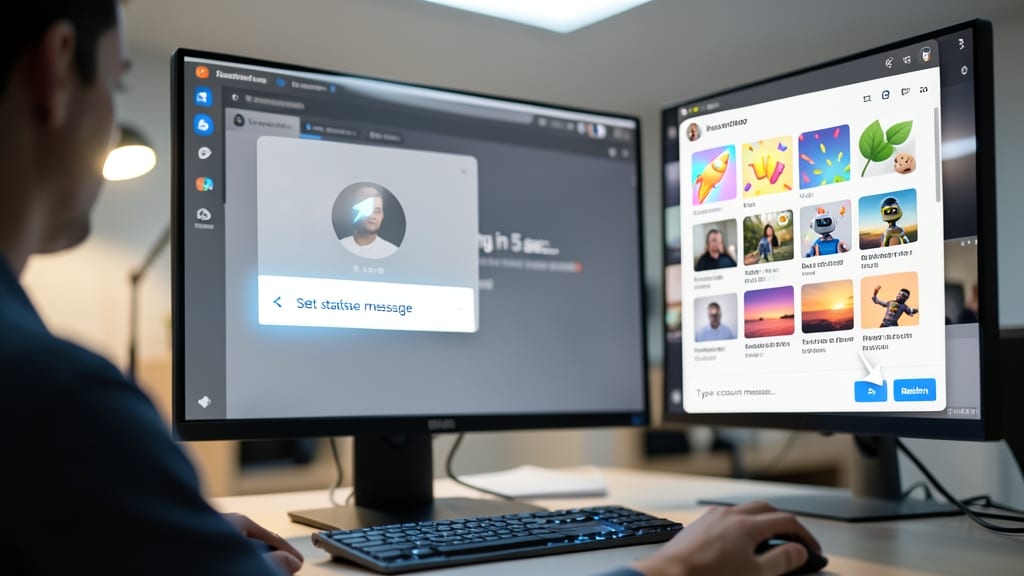
Tired of the same old "Available" or "In a Meeting" status? Microsoft Teams lets you customize your status with emojis, GIFs, and even custom messages—turning your availability into a conversation starter or productivity signal.
Click your profile picture, select "Set status message", then choose from pre-loaded themes (like "Focused 🎯" or "Out to Lunch 🍔") or upload a GIF (e.g., a coffee cup for "Working 💻" or a rocket for "In deep work 🚀"). Pro tip: Use emoji shortcuts like 🎧 for "In a call" or 🛠️ for "Debugging mode" to instantly convey context without typing.
This is a game-changer for remote teams, freelancers, or anyone who wants to stand out—whether you’re signaling "Do not disturb" with a 🚫 or adding humor with a 🐶 for "Dog at desk." ⚡
Record Meetings Automatically with Transcripts
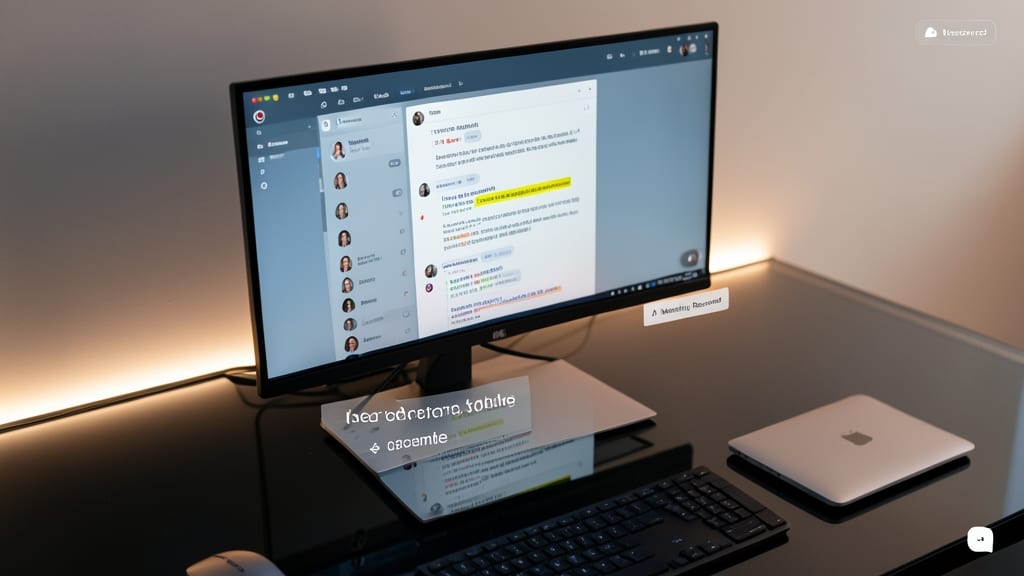
Forget scrambling to take notes during meetings—Microsoft Teams now automatically records calls and generates searchable transcripts in real time. This feature ensures you never miss critical discussion points, even if you’re juggling other tasks or on the go.
To enable it, simply start or join a meeting, click the three-dot menu, and select “Start recording”. The transcript appears alongside the video feed, letting you search for keywords or timestamps later. Mobile users can access recordings via the Teams app, with transcripts synced seamlessly across devices. The AI-powered transcription even works for multiple speakers, making it ideal for brainstorming sessions or client calls.
Perfect for managers, developers, or anyone who needs to reference past meetings—this is a game-changer for remote teams or hybrid workflows where documentation matters. ✨
Use 'Spotlight' Mode to Highlight Speakers in Large Calls
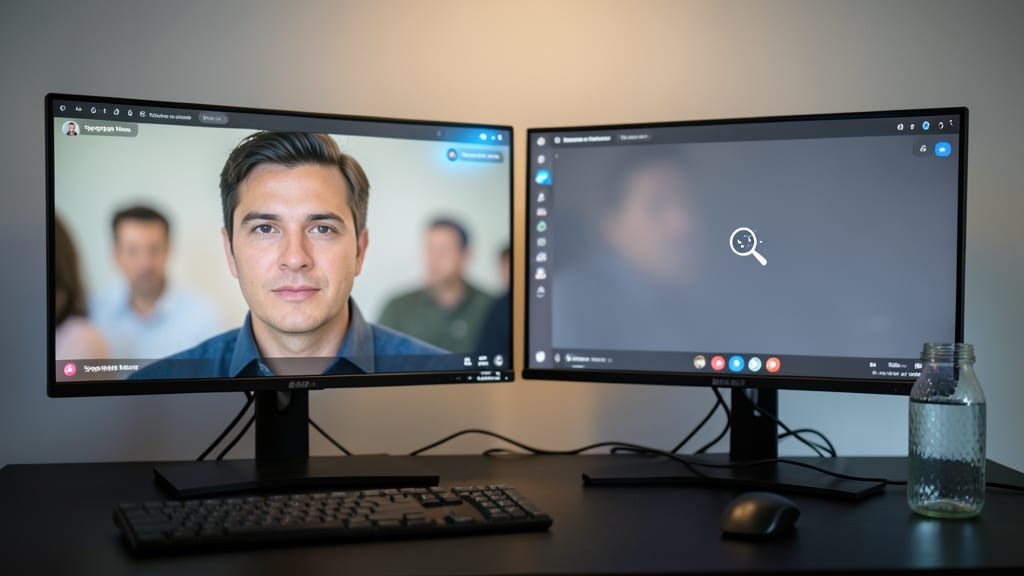
Struggling to keep track of who’s speaking in a packed virtual meeting? Microsoft Teams’ Spotlight Mode solves this by zooming in on the active speaker while blurring others—no extra tools needed.
To enable it, start or join a meeting, then click the three-dot menu in the meeting controls and select Spotlight. The feature uses AI to detect speech and automatically adjusts focus, making it perfect for training sessions or brainstorming with multiple contributors. You can also manually spotlight a participant by right-clicking their video.
Trainers, facilitators, and anyone leading discussions will appreciate how this reduces distractions and keeps the conversation flowing smoothly. ⚡
Schedule Teams Meetings Directly from Outlook
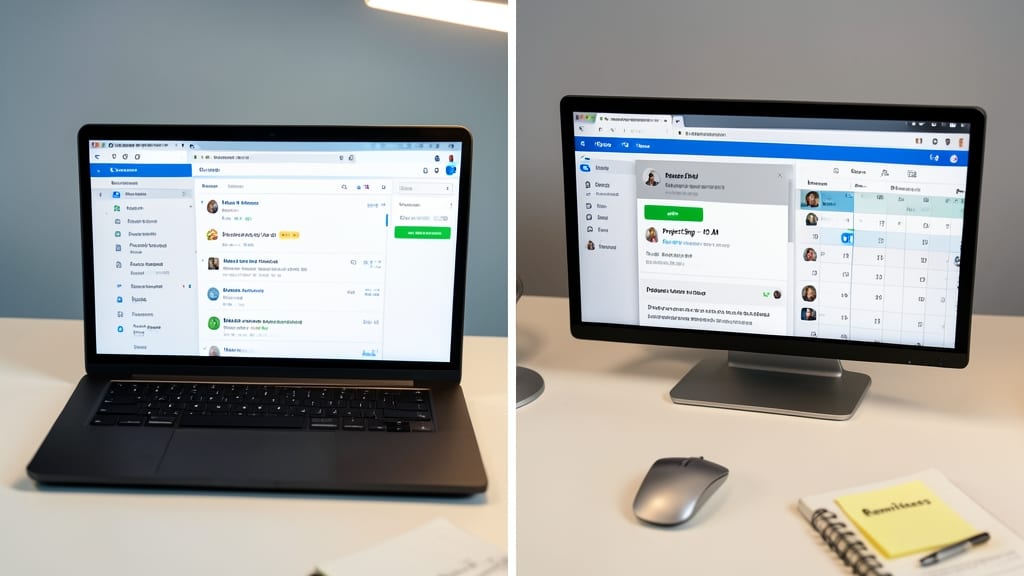
If you’re juggling Outlook and Teams like most professionals, switching between apps to schedule meetings wastes precious time. The solution? Schedule Teams meetings directly from Outlook—a seamless integration that lets you create, send, and join meetings without ever leaving your inbox.
Here’s how it works: When composing an email in Outlook, click the Teams meeting button in the ribbon to generate a calendar event with a click-to-join link. The invite automatically includes the Teams meeting details, dial-in options, and even a recording toggle—no manual setup required. For Outlook users, this eliminates the need to open Teams separately, saving steps and reducing errors.
This feature is a game-changer for hybrid teams or anyone who relies on Outlook for scheduling. Whether you’re planning a quick standup or a client demo, the integration keeps everything in one place—no context-switching needed. ⚡
Enable 'Together Mode' for Virtual Team Building

Turn awkward remote meetings into engaging team experiences with Together Mode—Microsoft Teams' built-in virtual workspace that aligns participants side-by-side in a shared digital environment. This feature eliminates the isolation of scattered video tiles, making it feel like everyone’s in the same room, even when they’re not.
The setup is zero-config: simply toggle it on during a meeting, and Teams automatically arranges participants in a customizable layout (e.g., office, classroom, or gallery view). Perfect for team bonding sessions, client presentations, or even virtual happy hours, it adds a layer of connection that standard video calls can’t match. You can even adjust the background to match your team’s vibe—whether that’s a sleek modern office or a cozy coffee shop.
Ideal for remote-first teams, managers hosting all-hands meetings, or educators leading virtual workshops, Together Mode turns passive participants into active collaborators. Give it a try next time you need to bring your team closer—digitally or otherwise. ✨
Use 'PowerPoint Live' for Real-Time Presentations
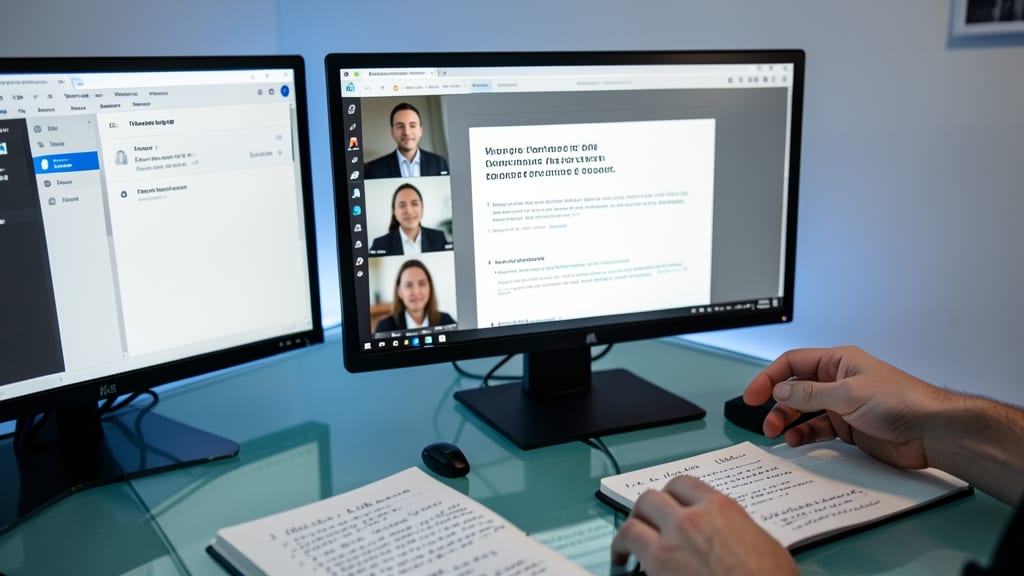
Tired of sending PowerPoint files before meetings only to deal with version mismatches or compatibility issues? PowerPoint Live in Teams lets you present directly from your slides—no file sharing required.
Simply open your presentation in PowerPoint, join a Teams meeting, and click "Share" to enable real-time slide sharing with annotations. The audience sees your slides as you advance them, and you can draw, highlight, or add notes on the fly. This feature works seamlessly with Office 365 subscriptions and eliminates the lag of screen-sharing alternatives.
Perfect for trainers, sales teams, or anyone leading client demos—this is the ultimate tool for interactive, lag-free presentations. ✨
Set Up Custom Notifications for Key Channels
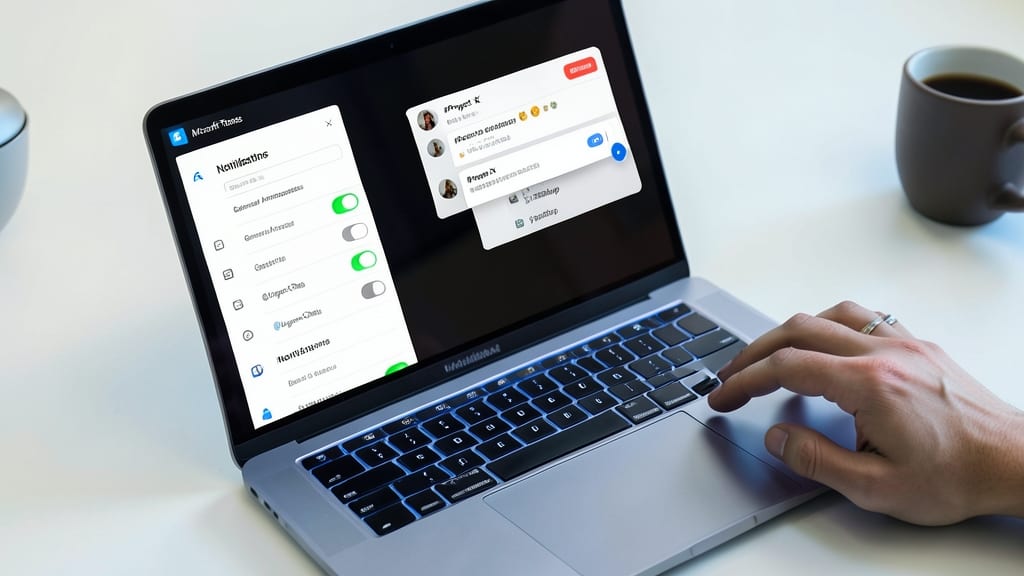
Drowning in Teams notifications? You can finally take control with custom alerts—silence non-essential channels while keeping critical updates front and center.
Navigate to Settings > Notifications and toggle alerts per channel (e.g., enable @mentions for urgent chats but mute general announcements). For deeper customization, use Power Automate to trigger alerts based on keywords like "urgent" or "action required." The desktop app even lets you choose between banners, sounds, or email summaries—perfect for avoiding context-switching during deep work.
This trick is a game-changer for project managers juggling multiple teams or remote workers who need to focus without missing key updates. ⚡