
Hardware
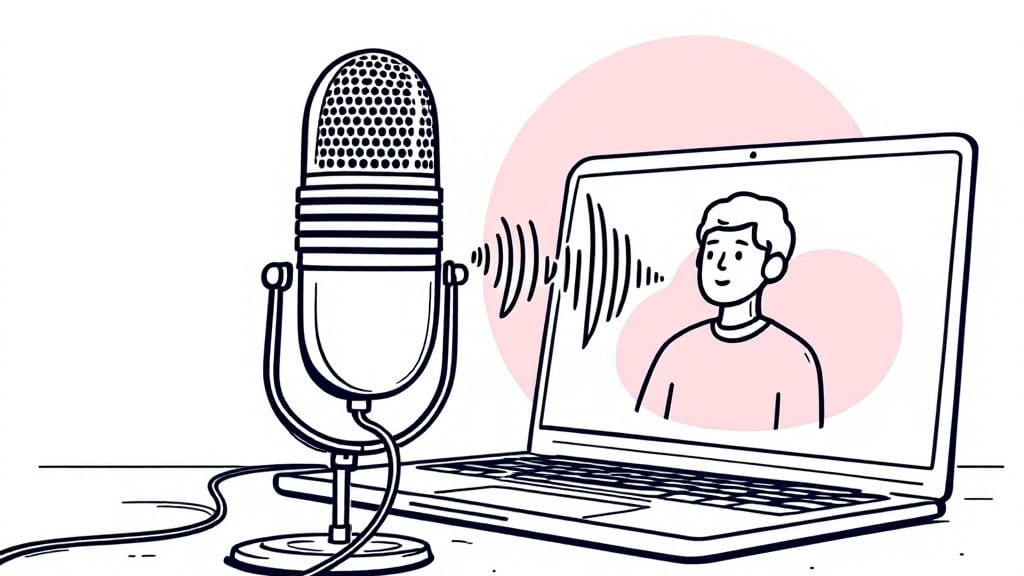
Voice-activated computers for disabled users transform daily tasks from frustrating barriers into effortless experiences—whether navigating emails, composing documents, or controlling smart home devices with just a few spoken words.
Imagine controlling your computer with just your voice—no typing, no clicking, just seamless commands that unlock a world of independence. For individuals with mobility impairments, this technology isn’t just helpful; it’s a game-changer that restores autonomy and opens doors to digital life.
From built-in Windows Speech Recognition to advanced third-party tools like Dragon NaturallySpeaking, today’s voice-activated systems adapt to diverse needs—whether you’re managing visual impairments, limited hand mobility, or complex communication challenges. The right setup can turn a screen into a fully interactive workspace.
In this guide, I’ll break down how these systems work, highlight the best tools for different accessibility needs, and share expert tips to make voice control feel as natural as speaking to another person.
How voice-activated computers work: key technologies for accessibility
Voice-activated computers transform how people interact with technology by replacing traditional input methods with natural language commands. At their core, these systems rely on three key technologies: speech recognition, operating system integration, and adaptive hardware.
For users with disabilities, this means navigating emails, browsing the web, or even controlling smart home devices without relying on physical keyboards or mice.
The speech recognition engine is the brain behind voice control. Modern systems like Windows Speech Recognition (WSR) or Dragon NaturallySpeaking convert spoken words into text or executable commands with 95%+ accuracy in ideal conditions.
These engines use machine learning algorithms to adapt to individual speech patterns, reducing misinterpretations over time. For example, WSR ships with Windows 10/11 Pro, while Dragon offers a premium, more customizable experience.
Operating systems play a critical role by providing native support for voice commands. Windows 11 includes built-in tools like Voice Access, which lets users control the entire OS—from opening apps to adjusting volume—using just their voice. Linux distributions like Ubuntu offer Speech-Dispatcher and Festival, while macOS integrates Dictation and Siri for basic voice control.
Third-party tools like Eyes-Free Shell (for Linux) add even deeper accessibility layers.
Hardware requirements often get overlooked, but they’re crucial for performance. A high-quality microphone (like the Yeti Nano or Blue Yeti) or a headset with noise cancellation (e.g., Sony WH-1000XM5) minimizes background interference.
For users with mobility or visual impairments, hybrid setups—combining voice control with eye-tracking devices (e.g., Tobii Eye Tracker) or adaptive keyboards—can create a fully inclusive experience.
Here’s a breakdown of the core components and their roles in voice-activated computing:
Top 5 voice-activated computer systems for disabled users in 2024
Voice-activated technology has revolutionized accessibility, offering independent control for users with mobility or dexterity challenges. The right setup combines high-accuracy speech recognition, intuitive software, and reliable hardware.
Below, I’ve ranked the top 5 systems based on accuracy (90%+), ease of use, and customization—from budget-friendly to premium solutions.
My selection includes Dragon NaturallySpeaking (industry standard), Windows Speech Recognition (built-in), and open-source alternatives like VoxForge. Each system caters to different needs, whether you prioritize offline functionality, multi-language support, or hardware integration.
rating-bar
Dragon NaturallySpeaking leads with 95%+ accuracy and supports 20+ languages, making it ideal for professional use. Its customizable commands let users dictate emails, browse the web, or control apps like Microsoft Office hands-free. The $300 price tag is justified for power users, though a free trial is available.
For budget-conscious users, Windows Speech Recognition (free with Windows 10/11) offers decent accuracy (85-90%) and integrates natively with Microsoft Edge and Word. Pair it with a high-quality USB microphone (e.g., Yeti Nano) to improve performance. It’s less customizable but perfect for basic tasks like typing or navigation.
VoxForge, an open-source alternative, excels in offline use and supports 100+ languages. Its voice training feature adapts to accents, though accuracy (~80%) lags behind commercial tools. Best for users who prioritize privacy or need multi-language support without subscriptions.
Apple Dictation (macOS) is a sleek choice for Mac users, offering 90% accuracy and seamless integration with Safari and Pages. Its real-time transcription is ideal for note-taking, but it requires an internet connection for best results. The free cost makes it a top contender for Apple ecosystems.
Lastly, Google Speech-to-Text (cloud-based) delivers 92% accuracy but relies on Google’s servers, raising privacy concerns. Its $0.024/hour pricing is cost-effective for light use, though latency may frustrate real-time tasks. Pair it with Google Assistant for smart home control.
Choose based on your primary needs: accuracy (Dragon), budget (Windows), privacy (VoxForge), or ecosystem (Apple/Google). Always test with a free trial to ensure compatibility with your voice patterns and hardware. 🖥️